clubs_support

Setup Basic Info


Set-up material

Material to be supplied prior to configuration

Marketing Collateral

Marketing

  • Name Club
  • Short description
  • Domain name presentation site

Communications

  • Default e-mail address club
  • Reply e-mail address
  • From name

Colors

  • Club / logo colors
  • Primary and secondary color (Hex code #000000)

Images

  • Banner photo: Ideal dimensions: 1200 x 300px
  • Logo: Ideal dimensions: 400 x 128px
  • Favicon: Ideal dimensions: 128 x 128px
  • Mailing header: Maximum dimensions: 600 x 200px

Corporate

Billing info

As to be used for member billing

  • Company name
  • Address
  • VAT no

Activity Location

  • Standard activities location
  • Name
  • address

Branding Assets

Specifically for the Logos and Images following further guidelines.
And especially the suggestion to use an Image Tool.

Logo

Use

The logo is prominently displayed on the login screen and in the upper left corner of the platform.

Specifications

  • Logo: ideal dimensions: 400 x 128px
  • Logo & Miniature logo: optimal white background or transparent
  • Logo for login: Transparent png (given color palette background)
  • Favicon: Ideal dimensions: 128 x 128px and a not too complex image

Banner

Use

The banner appears at the top of the online platform, as the background of the header.

Specifications

  • Banner: ideal dimensions: 1200 x 300px
  • This image is dynamic and responsive (for tablet and smartphone), so the effective appearance depends on the size of the device or window.
  • Any logo optimal at 1/2 the height of the banner.

Design Notes
Image Only

Due to the responsive nature of the platform (which adapts to laptop, tablet, and smartphone screens), it is preferable to use only an image.
The main menu items are integrated into this image, appearing in white text with the primary brand color used as the background for the menu section.

Mail Header & Footer

Use

The header appears at the top of all emails
The footer appears at the bottom, specifically for sponsor messages, with a link to the sponsor's website if applicable.

Specifications

  • Mailing header: Maximum dimensions: 600 x 200px
    , with a focus on width – max 600, otherwise the image will distort the email.

Design Note

No restrictions. Only perhaps the file size, given that it is sent with every email.
There are no specific restrictions on the use of images, text, or logos within this asset.


Configuration

To be completed during the configuration of Klubs

Memberships

Managing Membership Types
Membership TypesMenu / Administration / Memberships / Managing Membership Type

  • Membership name
  • Period
  • Cost

Member groups

Managing Member Groups
Member GroupsMenu / Administration / Member Management / Managing Member Groups

Member groups - usage (selection)

  • Invitations Activities
  • Mail Campaigns - target audience selection

Free fields / Meta fields

On the member profile, there is the ability to add free fields or Profile Meta Fields. These allow you to further complete the member profile with info such as interest fields, preferences, golf handicap, federation number, LinkedIn link, ...

Mailing module

For the mailing module, basic texts were already provided by default.
Menu / Settings - Email texts

Also, a basic text for the introduction of Klubs
Marketing / E-Mail Campaigns - New Membership Platform

Privacy Statement

Any updates to the default text of the Privacy Statement.

Terms and Conditions

Text around general conditions, if different from standard


Release

Just before the release, a complete run through of the general settings especially in terms of layout:

  • Settings
  • General
  • Layout & Colors
  • Basic texts
  • Billing
  • Menus
  • GDPR Toolbox
  • Modules
Read more

Pull strategy

The Klubs platform is available to users through a specific url such as https://concorde-philotaxe.klubs.be.
However, members should not know it directly. At each interaction, members are prompted from the system, via mailing, to come to the platform. They are pulled at the right place in the system via a "Pull" each time.

Public website

If your club has a public website, a link to the Klubs member environment can be placed there

Additionally, within the Clubs environment, a menu item can be added with a link to the public website.

Mailings

As reported, for each interaction, an email is sent to get the members with a Pull in the platform, in the right place.

Some examples:

Activate

At the start, each member must activate their membership. For this purpose an email is sent welcoming the member with the link to the platform https://demo.klubs.be/activate. This will lead to a short procedure to confirm login and password (but also his Privacy Consent, ...), possibly further completing the profile.
(For the above link, replace "demo" with the club specific domain name.

Activities Mail

For the Pull to activity registration, an email will be sent with the invitation and with user-friendly buttons to indicate your participation.

Membership renewal

At the end of the membership period a Pull to invite members to renew their membership. [renew] button.

Read more

Implementation Planning

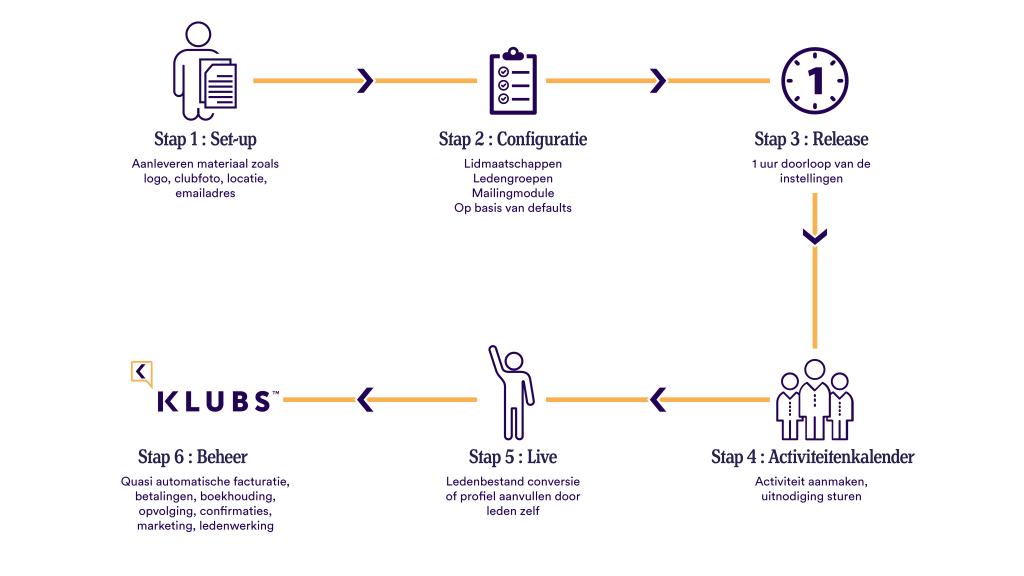
This document describes the phased approach for migrating an Association' s operational activities to the Klubs platform, focusing on a structured transition to ensure data integrity and seamless functionality.

The phasing and timing of this migration plan are designed for a full Klubs installation, including accounting integration and any linked applications. Smaller organizations or those with fewer integrated systems may plan for a shorter lead time.


If the association fails to submit data on time or submits incomplete data for a specific phase, it will jeopardize the completion of that phase within the agreed timeframe. This is likely to affect the overall project schedule and the final delivery date.


Phase 1 - Preparation

Team: Clubs, Data Team Association (input)
Due Date: D-day minus 2 months

This initial phase focuses on setting up the fundamental environment and configurations within Klubs.

Production Environment
Complete preparation of the assigned Association production environment within Klubs.
(Hosting, subdomain, ...)

Configuration
A thorough review of the complete Clubs configuration will be conducted jointly by Clubs and the Association. Special attention will be paid to settings that must be in place before the onboarding process begins, such as:
- Multi-Association: Configuration for managing multiple sub-clubs or departments.
- Email Settings: Essential email communication settings (DNS settings)
- Members: Profile settings, additional profile fields, member groups and administrative user roles.
- Membership: Defining membership types and setting up online registration procedures.
- Email Texts: Customizing various automated e-mail communications.
...and other critical system parameters.

Email Settings
Due to the significant volume of emails that Klubs will send on behalf of the Association, special attention will be paid to email settings.
This will require the implementation of specific DNS settings to ensure proper sender authentication and deliverability. Further details can be found here: https://support.klubs.be/en/knowledge-base/mail-set-up/

Accounting Integration (if integrated)
Yuki API settings: Configuration for financial integration.

Application Integration (if required)
Define the approach for linked applications, such as:
- Online Payments: Mollie Integration
- LMS - The Learning Management System
- SSO - Single Sign-On functionality.
...

Migration Approach
Clarify the main migration approach:
- Overlapping: Future planned operations will start in Klubs, while past planned operations (e.g., ongoing activities) will be managed/completed in the old system.
- Cut-off: Requires the migration of all relevant historical data for all live operations.
- Data Freeze: An established period during the transition when no new data or changes are allowed in the old system to ensure a clean migration.


Phase 2 - Onboarding (Commissioning).

Team: Data Team Association, Clubs
Due Date: D-day minus 2 months

This phase focuses on the initial transfer and validation of member data and core functionalities.

Import
The Association' s Data Team will prepare a subset of the membership database for initial import into Klubs, followed by extensive functional testing.

Email List Verification
Prior to full import, a crucial step of email list hygiene will be performed. This includes screening the list to identify and address invalid, inactive or role-based email addresses (e.g. info@, admin@) to ensure optimal deliverability and list quality.

Volume testing
The entire membership database will be imported.
Volume testing will be performed on several features, including member viewing, member search capabilities and mail campaigns.
Continuous monitoring of mail processing feedback will be maintained.

Finance
Thorough testing of financial integration (Yuki API) specifically for memberships will be conducted.


Phase 3 - Release

Team: Project Team Association, Clubs
Due Date: D-day minus 1 month

This phase marks the internal soft launch and input of operational activity data.

Project Team Walkthrough
A detailed walkthrough of the platform will be conducted with the Association's core project team to ensure that everyone is familiar with the functionalities and workflows of the new system.

Operational Datasets
Input of primary operational datasets will begin, initially focusing on different types of Activities, such as:
- Seminars
- Webinars
- Media Library

Finance
Comprehensive testing of full financial integration (Yuki API), including memberships, activities and online payments.

Application Integration
Complete testing of the integrated applications.


Phase 4 - Operational Preparation

Team: Comprehensive Project Team Association, Clubs
Due Date: D-day minus 2 weeks

This phase includes the complete onboarding of all remaining and current datasets.

Activities
Entry of all future planned activities and, if necessary, selected past activities for references (e.g., papers, images).

Mediatheque
Continuous import and organization of Mediatheque content.


Phase 5 - Live Try-outs

Team: Key Users Association, Clubs
Due Date: D-day minus 1 week

This crucial phase includes field testing by key end users.

Complete Try-out
A comprehensive try-out will be conducted by all Association administrators involved to validate the functionality in a live-like environment, ensuring smooth operation before the full public launch.


Phase 6 - Live

Team: Association, Clubs
Due Date: D-day

The official go live date, with a focus on supported rollout to the broader membership base.

High-Level Support
Klubs will provide high-level support and Association support to the broader membership and operations involved to ensure a smooth transition for all members.


Phase 7 - Platform management

Team: Project Team Association, Clubs

This ongoing phase focuses on continuous monitoring, support and further development.

Monitoring
Continuous monitoring of the system, including email delivery behavior, performance and overall system health.

Support
Ongoing support will be provided according to the established Service and Support Level Agreement (SLA).

Implementation of New Functionalities
Continuous implementation and integration of new functionalities as they are developed and released, to ensure that the platform evolves with the Association's needs.

Read more

Implementation wizard

Welcome to Klubs!

Strengthen your Association, with our membership platform. To get off to a smooth start, we recommend following these steps:

We have also already given your profile admin rights.
Login with your mail address at https://wista.klubs.be/activate

  1. Go through the Implementation Wizard
    If necessary, collect basic setup info in advance.
  2. Going through the Club Configuration (2nd part page)
  3. Add members to your Member List - Member Onboarding
  4. Contact Klubs for a walk-through of your settings
  5. Start creating Activities
  6. Send a welcome
    E-mail campaign - see mailing New Member Platform - Clubs
  7. Install the Mobile App and take Klubs with you wherever you go

Be sure to explore the full Klubs Support, the knowledge center. The support center can also be found on the platform by clicking on the support icon ⦻ in the upper right corner.

Support

After creating your Klubs environment, the club configuration and creating the first members and activities, we offer you subsequent, online, support from Klubs:

  • Release: an online review of club settings - 1/2 hour
  • Post go-live: with possible questions, via email, possibly online - 1/2 hour


Primary Institutions

Below are the primary settings. These should be determined in advance because they have a major impact on the settings or cannot be changed later.

  • Club information - Domain name for Clubs, Application URL
    url of your Clubs platform - do not change it
  • Communications - Mail address for shipment
    Important is the management of the shipping address, as this determines to a large extent the degree of delivery - Mail Set-up
  • Integrations - Mailgun
    The Klubs email delivery service - do not change these settings
  • Modules - Memberships
    Choosing to work with memberships should be taken deliberately. Modification thereafter should be done with the utmost caution.

Settings

All the settings are listed together and it is best to go through them in order.

  • Club Information
  • Interface
  • Communications
  • E-Mail Texts
  • Billing
  • Integrations
  • Registration procedure
  • Menus
  • Modules
  • Advanced options

Club Information

With following points of interest:

  • Association website
    This is the link at the bottom of the club platform for the Ⓒ credentials
  • Application URL
    url of your Klubs platform
  • Company information
    We use this information for your automatic privacy statement and to prepare invoices from KLUBS to your members as needed.
  • Default Location
    Default location for your activities. Used as default, but can be changed subsequently for each activity.
  • General Conditions
    Are at the Registration, per activity.

Interface

With following points of interest:

  • For this, possibly, together with a graphic artist, collect your marketing material in advance in the proposed format - Set-up basic info

Communications

With following points of interest:

  • Mail address for shipment
    Important is the management of the shipping address, as it determines to a large extent the degree of delivery - Mail Set-up
  • Marketing Collateral
    For this, if necessary, work with a graphic artist to collect your marketing materials in advance in the proposed format - Set-up basic info
  • Email Footer
    Rather to be used for Sponsor visibility, or along with a link to the sponsor's website.
    An overview document around Sponsorship.

E-Mail Texts

Some 25 default email texts used throughout the platform for member communications.
- Email texts

With following points of interest:

  • Subject personalization
    Possible with the placeholders - #firstname #lastname
  • Text personalization
    Possible with different placeholders - see button "personalization & legend"

Billing

A general overview in terms of Accounting and Administration in this overview document
- Clubs - Accounting & Administration

With following points of interest:

Integrations

With following points of interest:

  • Mailchimp
    For transferring your Member information to Mailchimp
  • Mailgun
    For sending emails (transaction emails and mail campaigns), Klubs uses an email delivery service - do not change these settings
  • Mollie
    Setup of Online Payments

Registration procedure

With following points of interest:

Menus

With following points of interest:

  • User environment
    Setup of the external Menus

Modules

With following points of interest:

  • Memberships
    Choice to work with memberships should be made deliberately.
    Modification thereafter should be done with the utmost caution.

Advanced Options

General Club Settings

  • Corporate Membership Management
    Managing Memberships at the Corporate Level.
  • Financial Tracking
    Specific procedures and lists for Financial Tracking within Clubs.
  • Waiting lists
    Tracking enrollments using Waiting lists
  • Invitation Buttons
    Determining which buttons appear for the RSVP
  • Enrollment Procedure
    Where then one might skip the general information and land directly on the enrollment form (for members with advanced knowledge or intensive use of Clubs)

Club Configuration

Following configuration elements should best be determined, prior to adding members, memberships or activities.

Membership Types

Configuring membership types
- Administration / Memberships - Managing membership types

Member groups

Configuration of member groups, this can then be directly included in the onboarding.
- Administration / Member management - Add member group

Profile - Meta fields

Configuring Profile - Meta fields
- Administration / Member Management - Additional Fields

Corporate Member Management

Managing Memberships at Corporate Level
- Settings / Advanced Options - Member Management

Activities

Configuration of Activity Types
- Administration/Activities - Manage activity type.

Read more

Member - Membership

Member - Membership

For each member, 1 (one) member record is maintained with its fixed data such as contact info, billing information, etc.

However, for each member different Memberships may exist. And for each period (year) that the member in question had a membership.

Where over time the type of membership can change for example from Young member to Full and then later to Senior member. Each possibly with a different price.

Read more

Social media in communications

Possibility to add social media channels to the communication mailings.

Setting

Ability to add the social media link (Facebook, Instagram, LinkedIn) in the Communication settings.

Use

The social media icons and the link will be included in the various mailings (Mail Campaigns and Activities).
And this only applies to the social media channels for which a URL has been set up in the settings.

Read more

E-mail tracking

Within Klubs, numerous types of mailings are sent such as invitations, confirmations, as well as membership renewals and also email campaigns.
The tracking of these sent emails can be done in several ways.

Settings - email texts

In Settings, there are about 25 email texts that are used in the various communications.

Each of these mails can have an additional mail address attached to it that then also appears in CC of that mail and thus receives the mail.

Reporting - Email Campaigns

With email campaigns, there is separate reporting.

Campaign reporting with indication of effective sending timing.

Reporting - Profile

For each member, there is also a reporting of mail activity

Through the admin member list to a member's profile and there at the tab

  • Email Follow-up

A list of the emails sent to this particular member.

Reporting - Emails

At Admin reports a full report around mail traffic from Klubs.

Reporting with indication of timing for Accepted, Delivery, Opened.

Undelivered mails

For sending the mails from Klubs, we work with a transactional mail system. This is a separate service that guarantees high delivery. Additionally, all mails are personalized with deposit codes (#firstname) to increase this delivery even more.
The non-arrival of mails has nothing/not much to do with the sender, more with the spam settings at the receiver.

Part of the problem lies with the recipient
Outlook, Hotmail, almost all Microsoft mail accounts, have a very high spam sensitivity.
In addition, there is also the issue of control at company accounts or Providers with specific Anti-Spam filters.

Here is some background info around various mail delivery issues:

Read more

Email Campaigns

A full mail campaign functionality in the Klubs tool to communicate with members and prospects.

Setup

Within the Marketing menu, the possibility of setting up a mail campaign.

Input

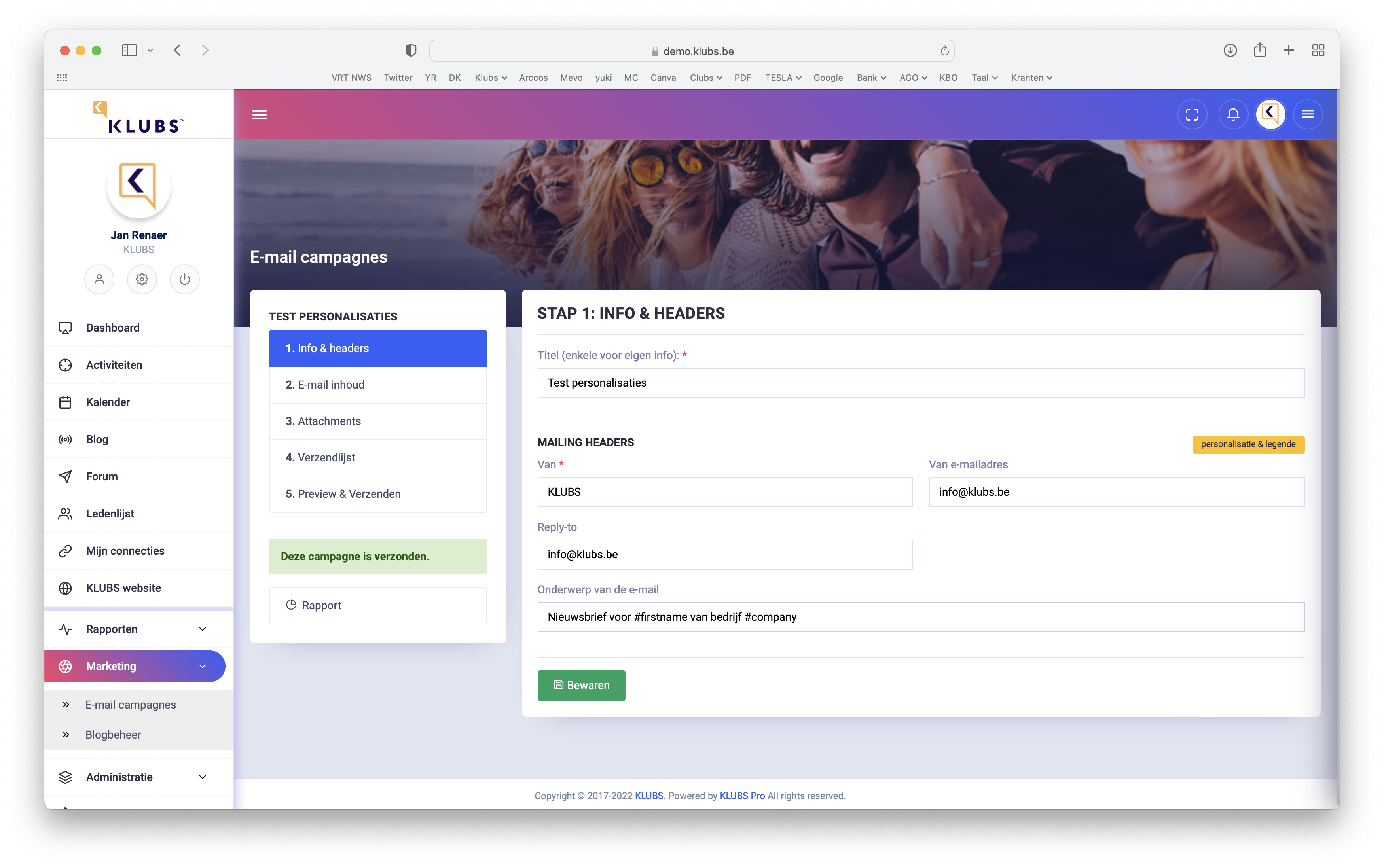
  1. Info & Headers

Input of the general info with the mailing header data.

But especially the subject of the mail (subject) which is personalizable via shortcodes (personalization & legend).
Easy input via click and paste.

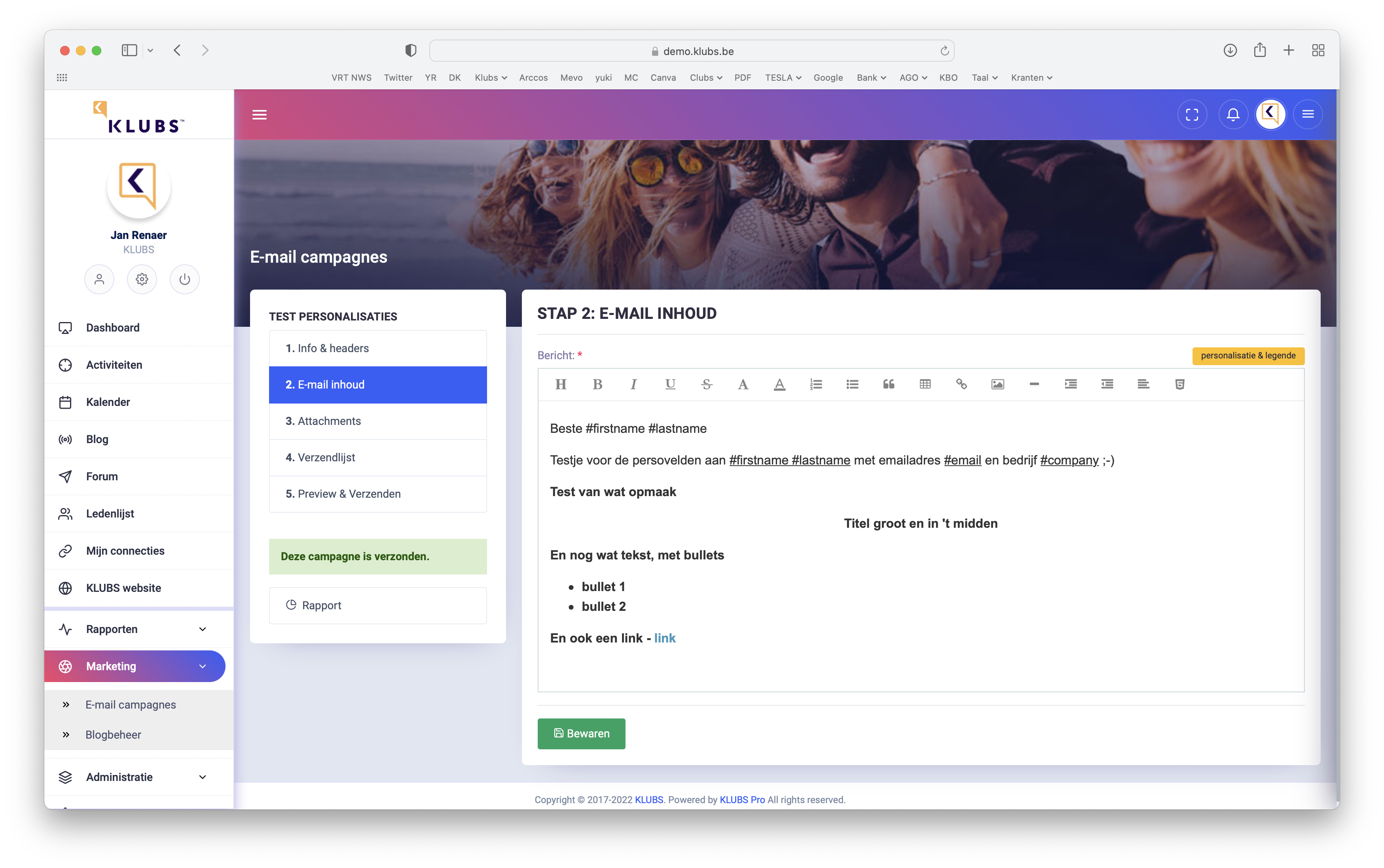
  1. Email content

Use of the editor for formatting a mail campaign.
Complete with text formatting, pictures, links (to external sites), possibly even review of the html source code for finer editing.

HTML Formatting

Optionally, you can format an email entirely in HTML. This offers extensive design options.

For this HTML formatting: Knowledge Base – Text Editor

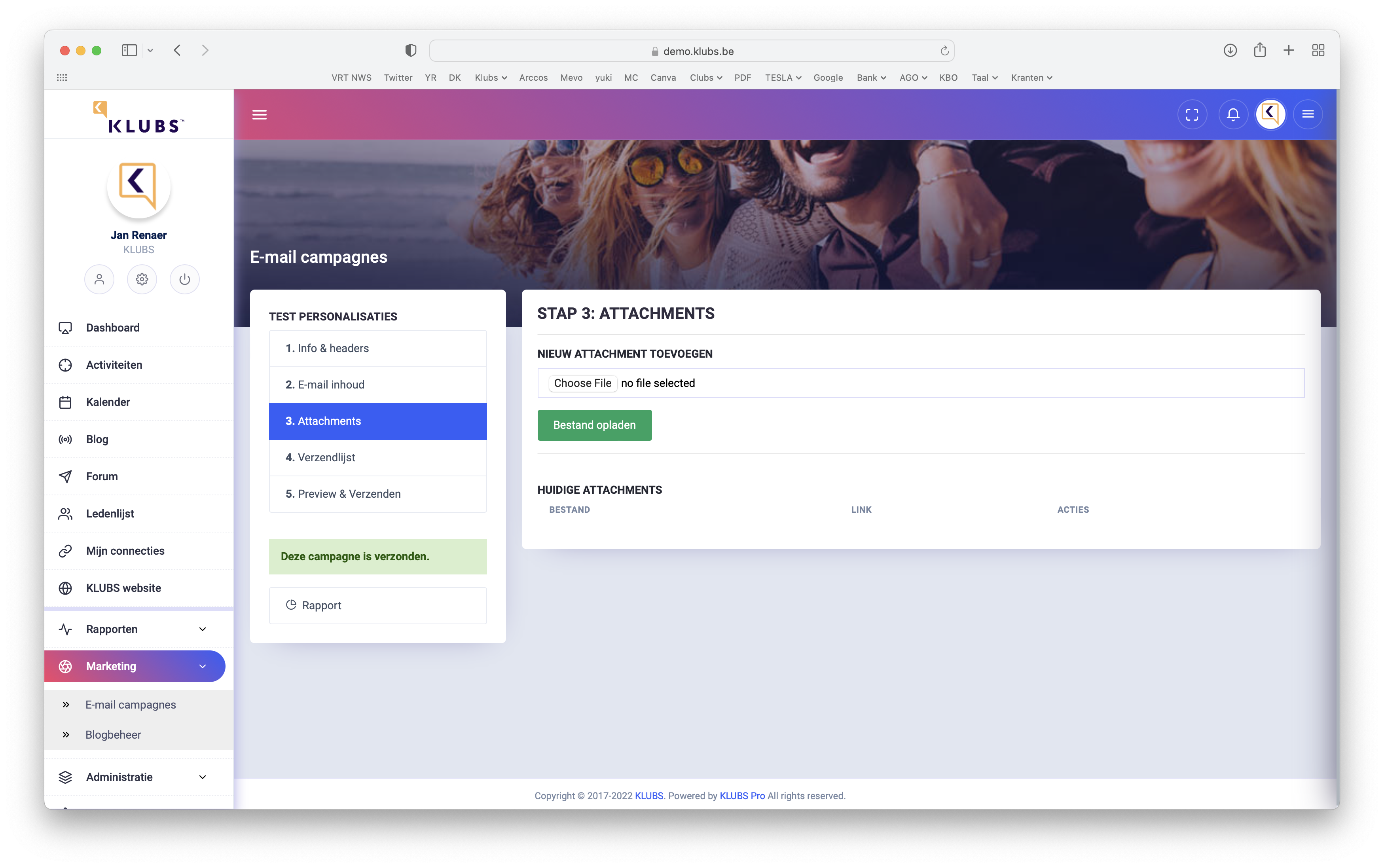
  1. Attachments

Also send files along with the mailing.
Easy to upload and will be sent as a link in the mailing.

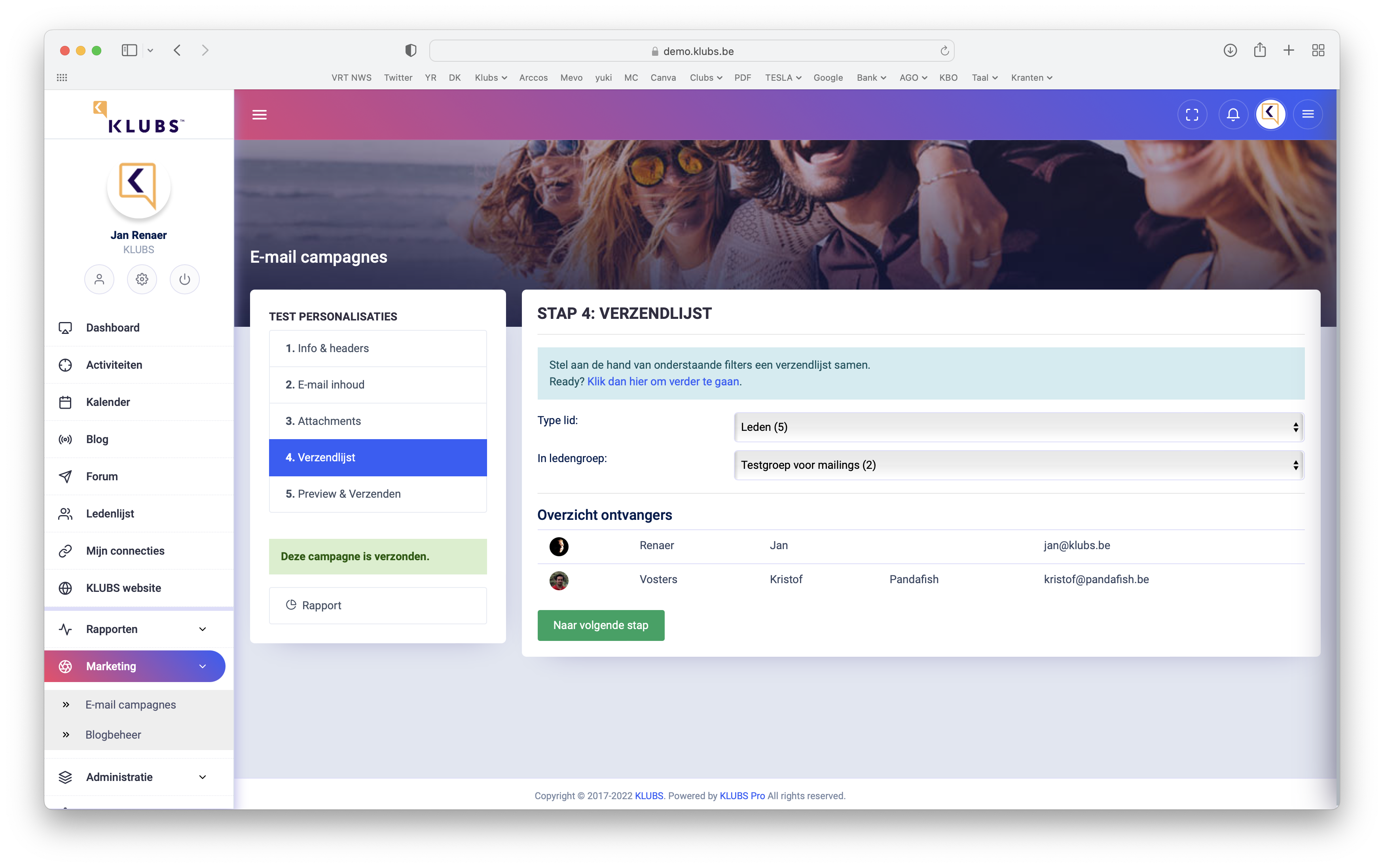
  1. Mailing list

Formatting the mailing list by selecting member type and member groups.
Also indication of number of recipients after selection.

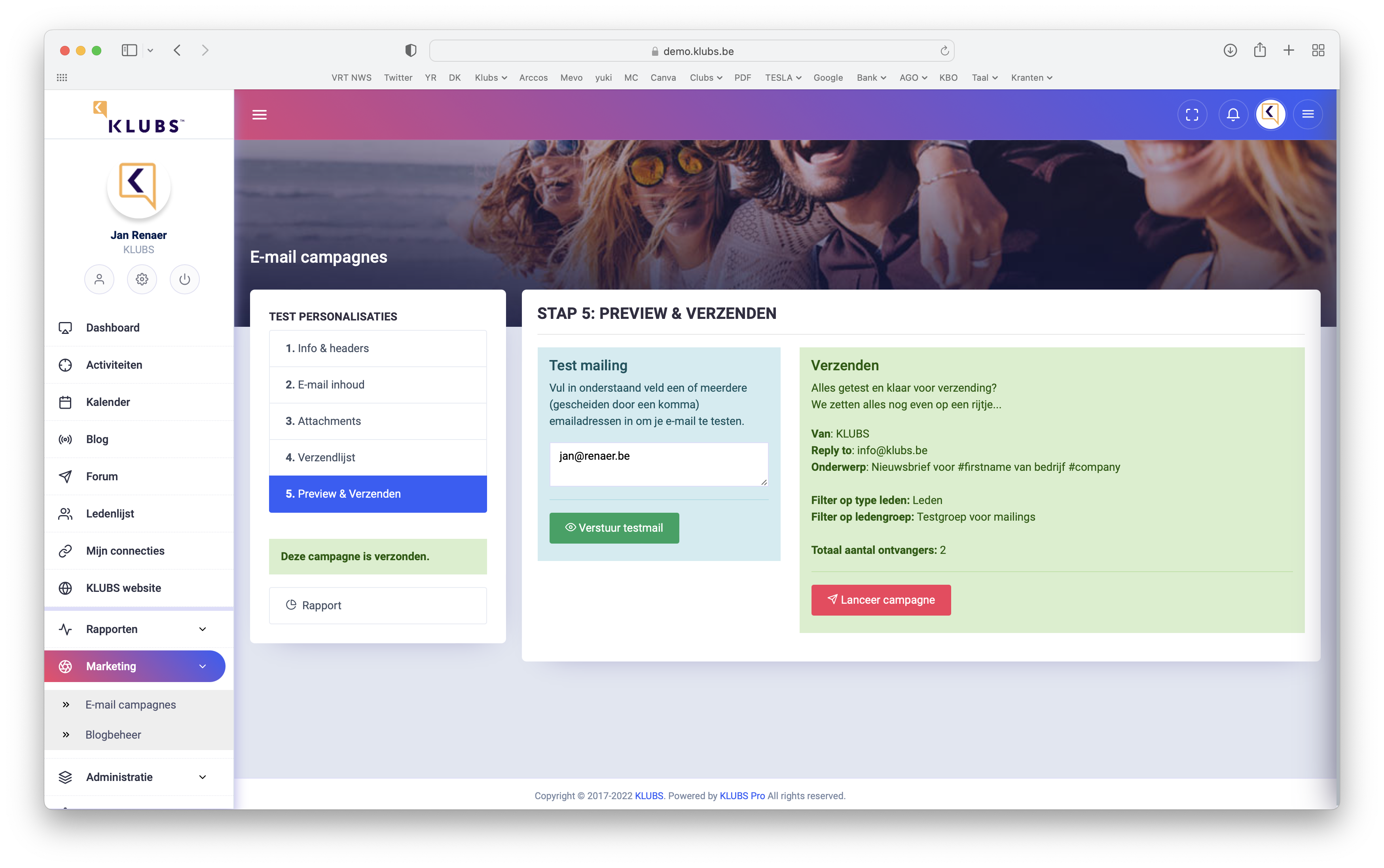
  1. Preview & Shipping

A summary just before sending: the header info, filters, number of recipients.
Sending the mail campaign or the possibility of a test mail.

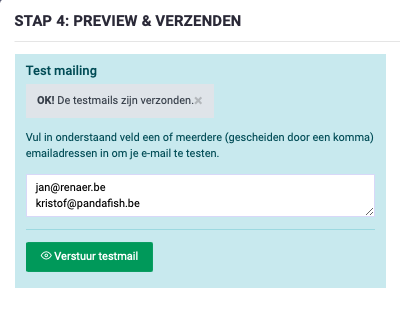
You can also forward the test mailing to different people. Simply include the mail addresses.

Multi-language Campaigns

Setting up multi-language campaigns runs quite smoothly through the use of member groups.

Set up the member groups, and register the members' language preferences.
Then set up different mail campaigns (per language) and send them to the separate member groups via the mailing list.

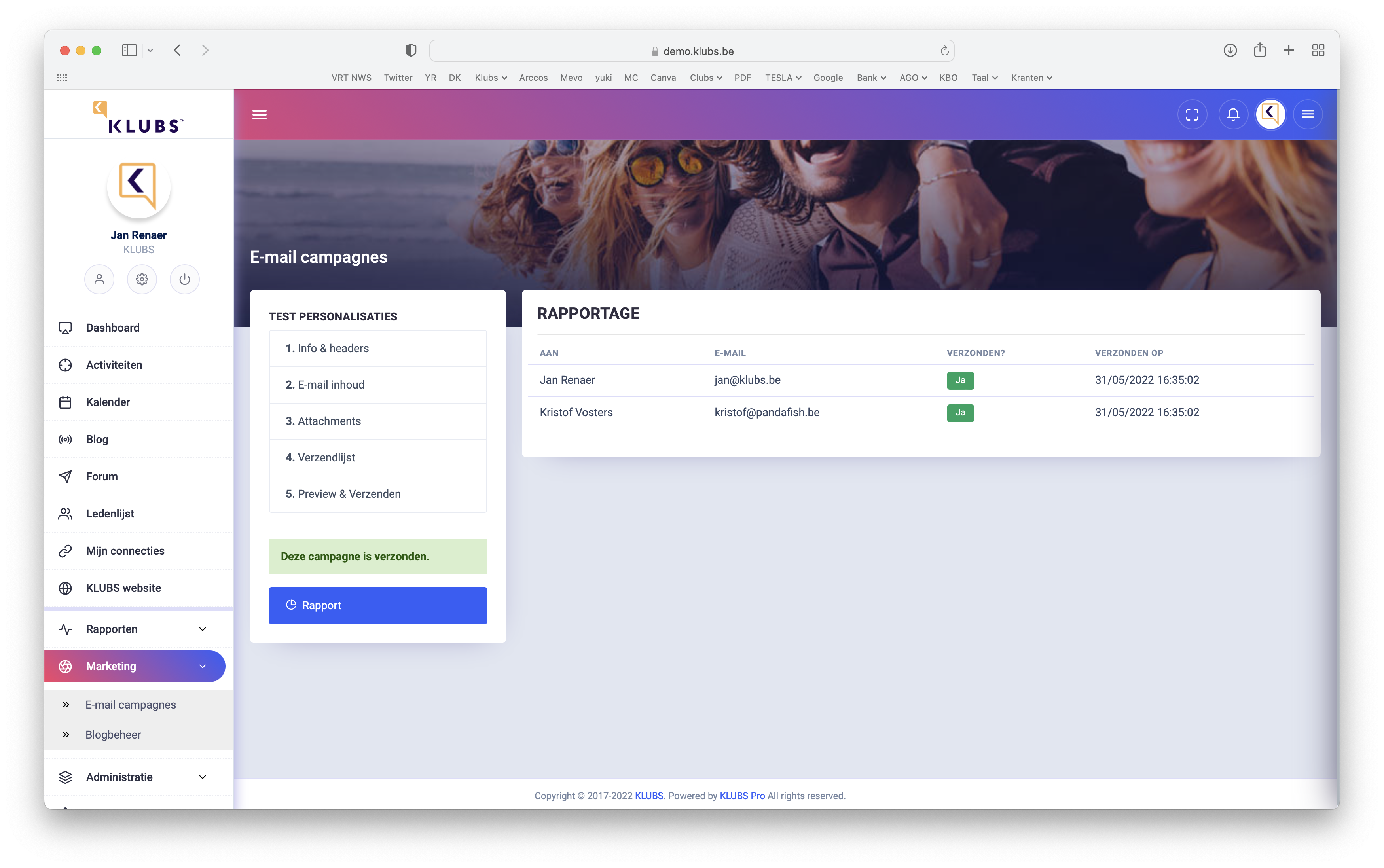
Reporting

Campaign reporting with indication of effective sending timing.

Read more

Media Library

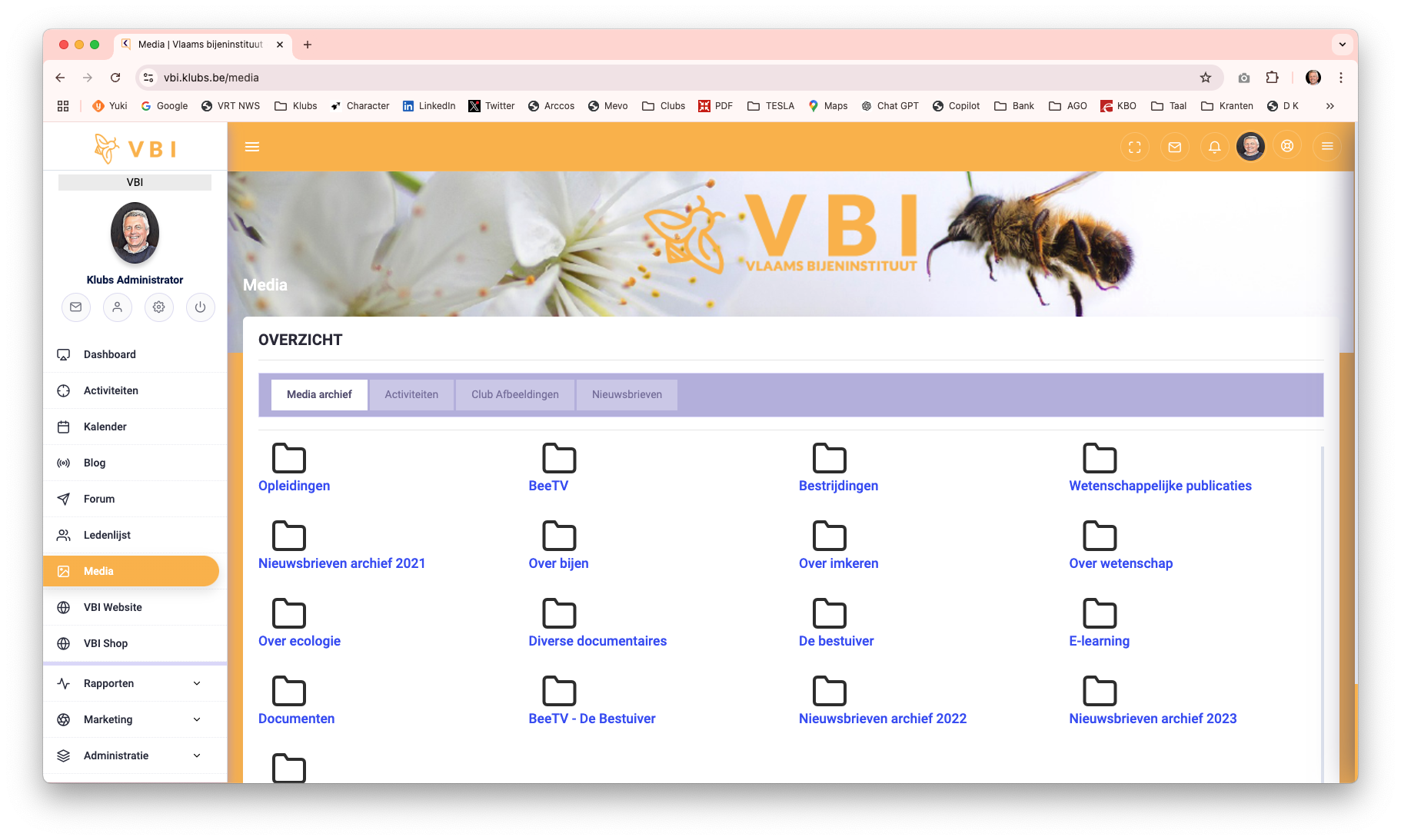
The Media Library brings together the different types of media from Klubs to then offer to members.

  • Media Archive
    A fully customizable media archive for Images, pdf documents, videos and classifiable into organized folders;
  • Activities
    The well-known Activities Media with photo reports possibly documents as archives of an Activity;
  • Newsletters
    Specific Mail Campaigns, Newsletter type, are brought together here;

Media Archive

Setup

Setup of the Media Archive with Folders and Media Items

Where Media types can be pdf documents as well as videos:

  • Files
    Allowed file formats: JPG, PNG, BMP, GIF, PDF
    Max. size 10MB
  • Videos: both Video and Youtube via ID
    Vimeo example ID:https://player.vimeo.com/video/1018578648
    Youtube example ID: https://www.youtube.com/embed/j5VBt0xx88Y

Use

Use by members, easy by folder structure.

Activities

The Activity Media is set up when managing the Activity, select - Photos & Documents
Here you can then add the files and set the visibility per activity.

The Media Library displays all activities where photos or documents were uploaded.

Newsletters

Newsletters
Specific Mail Campaigns can be referred to as Newsletter type.
These are brought together here, conveniently available to members.

Setup

In Mail Campaigns, specific mailings can be designated as Newsletter type.

Newsletter Link

After sending the mailing, a link can be copied with the reporting which can then also be further used for public website, social media, ...

Newsletter View

The Newsletter (indication Newsletter and after sending) is then included in the Media Library.
The formatted newsletter is then displayed in your browser, either through the link in the Media Library or through the public link from the report.

Read more

Webshop

The Webshop is a useful tool for selling Regalia or Club Merchandise. Complete with delivery options and accounting integration.

Setup

Product input

Easy set-up of the products with following specificity:

  • Product
  • Categories - for grouping by offerings
  • Price info and VAT indication
  • Sales info: number ordered

Product detail

Detail screen for further data input: photo, ...

Webshop

Orders are recorded on a clear Selection and Order screen

Easy order taking by:

  • Categories - by product group
  • Or choose from the full list
  • Completing your order: delivery, payment, etc.

Administration

A simple administration with the following statements.

Orders

Overview of orders with indication of date, amount, billing status.

Communications

Communication regarding the order, via email.

Billing

Invoicing then proceeds through the accounting interface, similar to the other settlements of Activity Participation or Venue Rental.

Read more