

Within Klubs now includes the option for online payments.
Now you can easily accept payments for your activities and memberships via Online Payments. It’s simple, reliable, and cost-effective. Follow the step-by-step guide below to sign up. You’ll only start paying for the Online Payments service once transactions begin (there are no subscription fees—only transaction fees).
Here are a few options within Klubs:
- Mollie
A modern, tech-driven payment service provider that primarily targets (small) businesses (VAT number).
No setup fees, no subscription fees—just a flat rate per successful transaction - WorldLine SaferPay
Global Corporate Payment Service Provider.
Monthly subscription combined with transaction fees. - WorldLine Direct
The latest generation from WorldLine (formerly Ingenico / Ogone)
Also suitable for non-profit organizations.
Mollie
Setup
1. Sign up with Mollie
Sign up at the attached link: Clubs - Mollie
Collect the requested data and upload it into Mollie, such as:
- Association: address, VAT no.
- Beneficiary: beneficial owner as in UBO register
- Id. of responsible
- Payment info to make a test payment
2. Confirm your mail address
Via a confirmation mail you confirm your mail address at mollie
3. Link your association to your Klubs platform
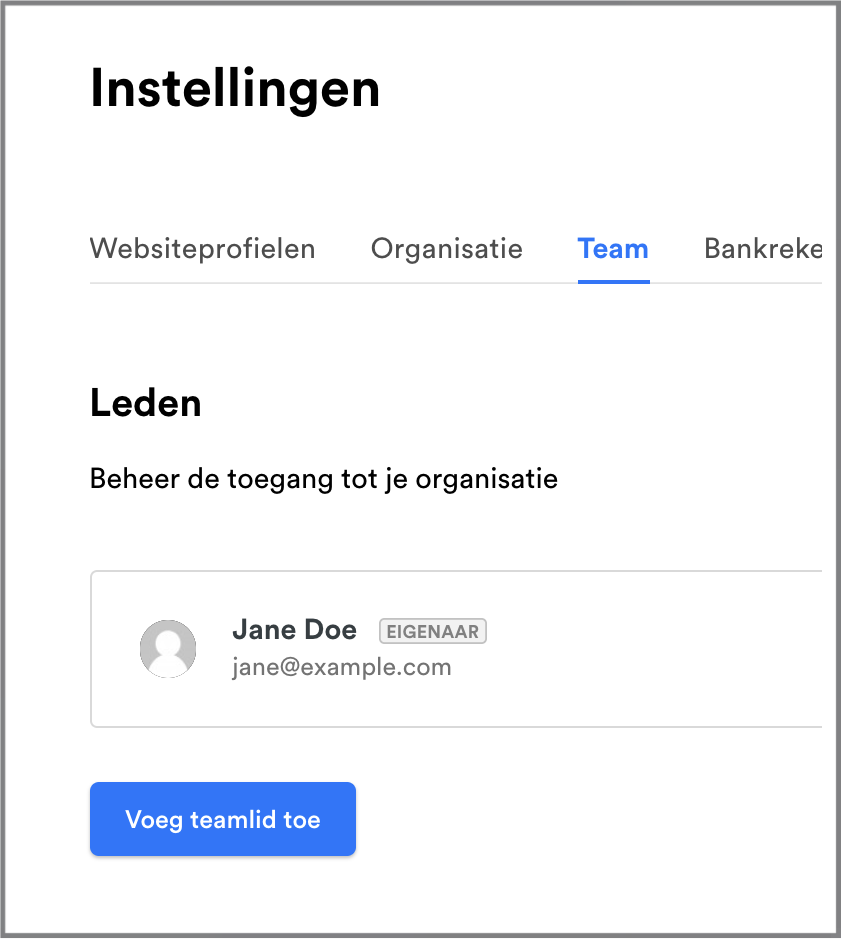
Add via: Settings / Team / add new member as Developer
- Add the email address mollie@klubs.be.
This allows us to look up the data we need for implementation.
Activate account
At start via the button - Activate account
Add the details of your association here: address, VAT no., ...
And under VAT arrangement choose: VAT transferred
Clubs
Klubs also requires a small set-up in Settings and for your Terms and Conditions
Setup
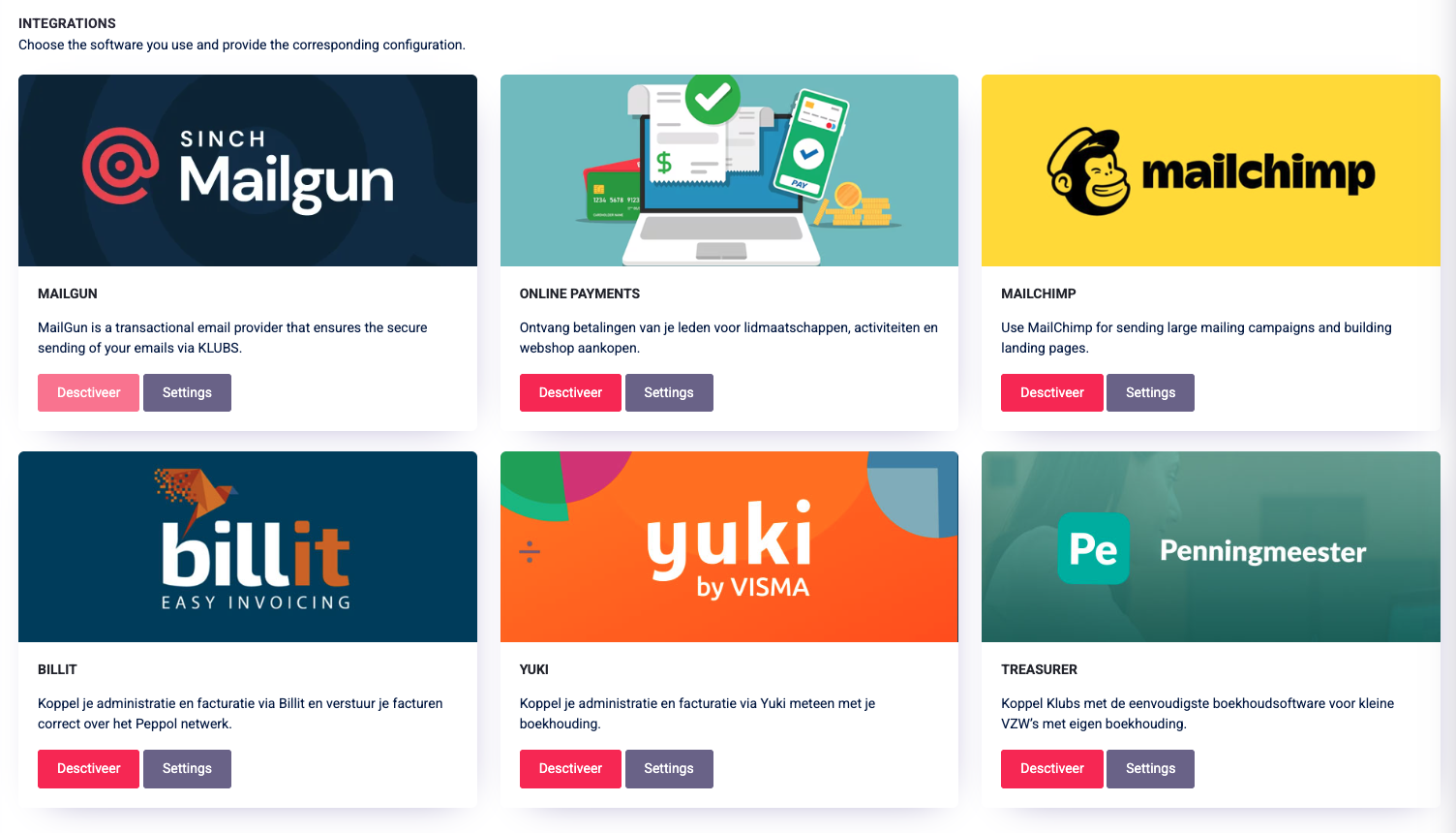
Enter the required API information under Klubs Integrations – Online Paymens / Mollie
- API Key for Test / Live
- Partner ID
- Profile ID
Mollie compliance
To use Mollie's services, there are some terms and conditions regarding the Products and Services.
- Mollie terms and conditions
In addition, Mollie needs to know the Terms and Conditions of the Sales Environment.
Therefore, the Terms and Conditions were prepared for the Klubs platform.
- Terms and Conditions
Use
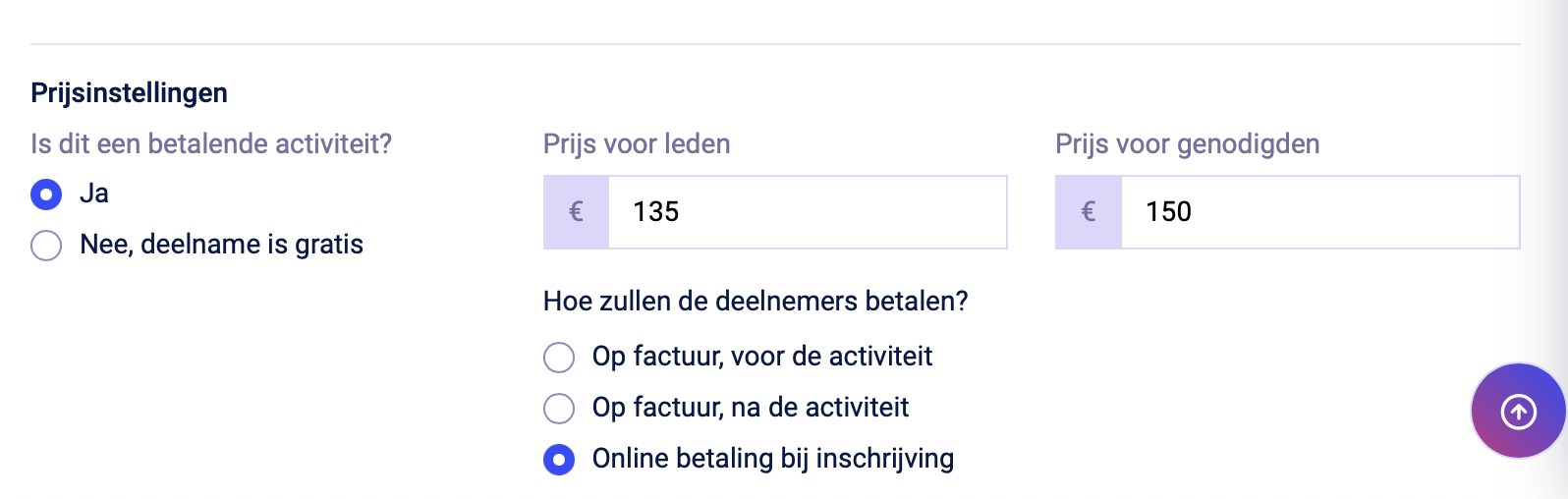
In the Activity settings still indicate - Online payment upon registration
Pay link
If mollie is set up for Klubs, in addition to online payments at activity registration, you can also use mollie for adding a payment link on your Yuki invoices.


Setup
First you need to set up a Mollie account, for your bank account.
As stated above:
- https://support.klubs.be/knowledge-base/online-payments/
Yuki
In the Yuki settings, you need to activate the Mollie link
- Settings - Integrations - Mollie
Then an indication of this payment option on the Invoicing mail in Yuki
- Settings - Sales Settings
"Please pay this invoice using the following link [PublicLink]."
Use
Below is the invoice mail as sent from Yuki, with indication of the specific payment link.
Payment for the customer is then made through the payment screens (with QR code) as above.

WorldLine Direct
Setup
Enter the required API information under Klubs Integrations – Online Paymens / WorldLine Direct.
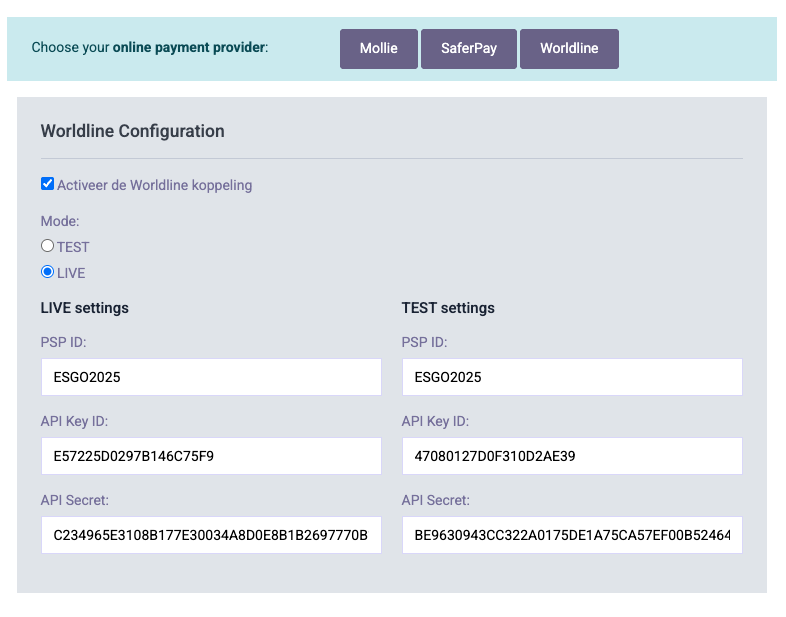
Here are the settings for your WordLine admin dashboard:
- PSP ID
- API Key ID
- API Secret
Use
The process in Klubs (Setup, Online Payment option) is similar to the one described above.