

Members can be contributed to Clubs in 2 ways.
- Admin Entry
- Import function
Admin Entry
The admin entry allows to add a Member and directly create the Membership and send a communication around this membership.
- Admin - Member / Add Member

Import Function
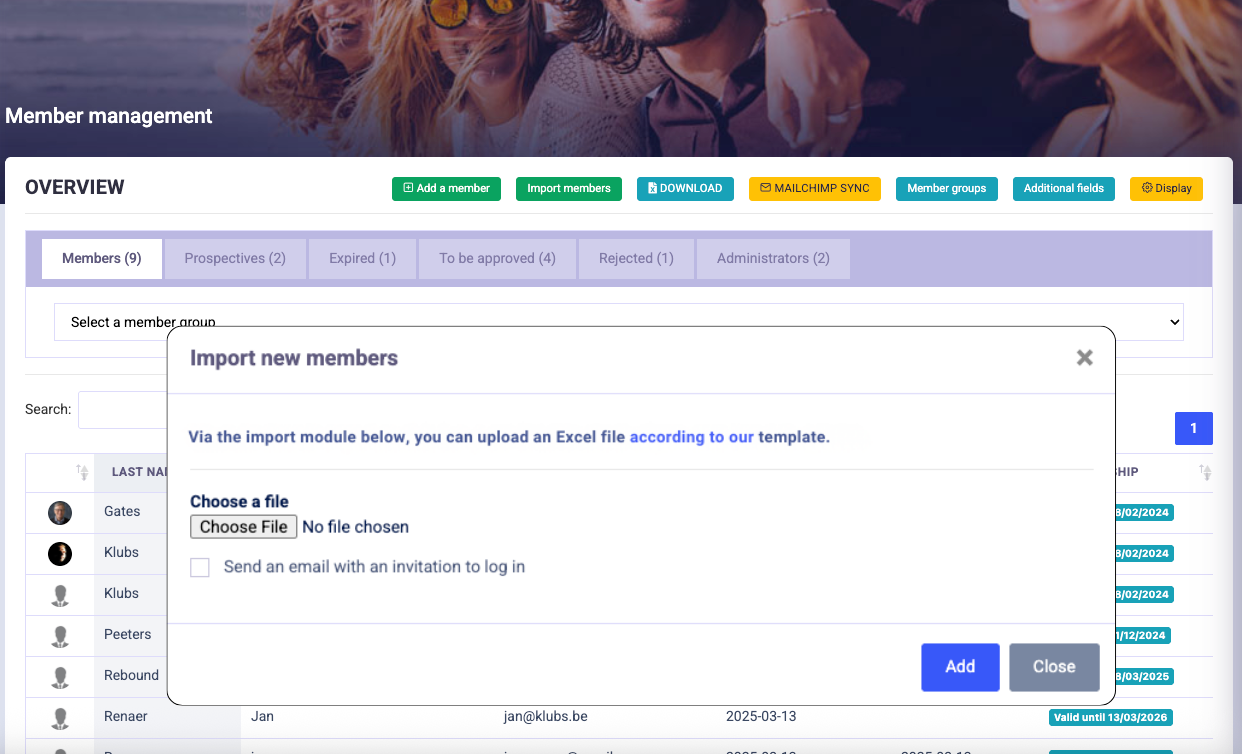
A bulk import of members into Klubs can be notified via the Member Import function.
With following features:
- Members / Prospects: import of both Members and Prospects
- Profile info: import of profile info of members
- Memberships: automatic creation of Memberships (period, pricing, ...)
- Member groups: multiple Member groups per member possible
Preparation
To optimally prepare for the bulk import, please follow the Implementation Wizard.
Specific attention to determine and set up the Membership Types in advance.
And then also use the exact naming convention in the import file.
Import file
Bring the members to be imported together in an Import file with a specific Clubs Template.
- Do not change anything in the Headings (these are the match fields for the import)
- The example lines (Pieter Peeters, Jan Janssens) can be removed
- Use identical Membership Types to those previously set up in your club platform
- Multiple member groups per member possible, separated with a dash (-)
- Date format is yyyy-mm-dd
Then save your member list as a .csv (Comma Separated Value) file and ready for import.
(Administration > Member Management > Import).
Limitation
For sending the mails from Klubs, we work with a transactional mail system. For optimal processing of subsequent communication functions, following restrictions:
- Personalized: imports without Name and First Name will not be imported
- Role-Based mail addresses: these should be limited
(Certain mail addresses are associated with high bounce rates and spam complaints. These include Role-Based mail addresses such as info@, support@, admin@admin. The use of these types of mail addresses can therefore negatively affect the mail delivery of the e-mail system).
Use
If there were irregularities in the import anyway, it will be reported in an error message.
These can then be adjusted specifically per member.
After this import, the members still need to be activated. This can be done by sending a mail to the imported members. An introduction mail example is ready in Mail Campaign) or can also be done via the link https://xxxx.klubs.be/activate (where xxxx should be replaced by your Klubs domain name).
Memberships can be changed afterwards via bulk customization - Renew Memberships