In addition to member recruitment, there is also the ability to add members based on a member list (name, first name, email) or manually.
Afterwards, these members still need to activate themselves on the platform (choose password, complete profile). This activation can be done via a mailing campaign or possibly via an individual mail. Marketing / Mailing Campaign - Introduction new member platform
Introduction link
Herewith the standard introduction link to create a password based on a mail address and access Klubs https://demo.klubs.be/activate where "demo" should be replaced by the club domain name.
Login details via Admin
If this activation mail does not arrive (due to mail delivery issues) this activation mail can be sent again from the admin account. - Send new login information by email to ...
After sending the mail, the activation link will also appear. This can then be sent separately from the personal mail or via WhatsApp. Probably with a higher delivery.
Privacy Statement
All new members are also asked to agree to the Privacy Statement.
Above the GDPR consent. https://demo.klubs.be/myprivacy, where "demo" should be replaced with the club domain name. With an additional option to make certain personal information visible or not visible to other members.
Within Klubs, there are the following Member Status
Members
Prospectives
Expired
To be approved
Denied
A special member status is Admin, which has administration rights at the club level. See below for further info around this.
Member Status
Members
The essence of Klubs - the Membership Database. Registered members have a login, can register themselves for activities, as well as register guests, connect with other members, view their contact info, in other words use their Membership.
Various opportunities to bring members into the membership:
Upload of an existing file (at least Name, First Name, Mail Address) Especially for onboarding of existing association members
Add via Admin: Administration / Member Management / Add Member
Registration through an external link (direct membership / after approval by admin) For recruiting new members
Prospectives
There is also the possibility to keep prospects within Klubs, in order to further develop your club. However Prospect lists are supplementary, and cannot be used as membership-replacement, for example for extensive mail campaigns or activity registrations.
Prospects can be added through Member Management - Create Member And then select Member Type - Prospectives.
Sponsorship is a two-way concept. With a sponsorship agreement, it is not only the club that receives a sum of money but the club must also presumably provide a quid pro quo. In terms of visibility of the sponsor(s), this can be done in two ways.
Dashboard
A first sponsorship expression is on the Dashboard.
Club Sponsors
First is the formatting of the image (preferably square) with the sponsor logos. An Image tool can be used for the formatting of more complex banners. This visibility on the Dashboard is in fact a blog item
Menu: Marketing / Blog Management / Add Blog
Title: e.g. "Our Club Sponsor"
Add Image
Published - Yes and definitely Sticky - Yes (this keeps the image at the top of the blog items
Individual Sponsors
For separate blog entries, there is an external link on the blog image.
Thus, a per blog item Sponsor logo can be inserted or linked to the sponsor's website.
Mailing footer
A second sponsor expression is as a footer on all Klubs mailings. Again, there is the formatting of the image, preferably 600 x 200px.
Club Settings
On the Klubs mails not only a footer image but also a link to a separate (sponsor) web page.
Menu: Settings / Communication
Add Footer Image - preferably 600 x 200px.
Add link to web page
Sponsor per Activity
To give sponsors even better visibility, it is now possible to adjust the mail header, footer (with sponsor logo) and sponsor link per activity.
Your club's financial processing is primarily for annual memberships and processing the cost of activities.
A number of provisions have been made for this in Klubs. And either to track this internally or through an external accounting software.
For clarification around administration and accounting for your club, please refer to a Long Read around administration, accounting, VAT status, debit notes. Clubs - Accounting and Administration
Financial set-up
The Klubs financial set-up consists of declaring the VAT rate for memberships and activities and also the Pricing.
1. VAT rate
Here you determine which VAT percentage applies to the charging of Memberships or Activities. This is because some clubs have a VAT exemption for membership fees (e.g. sports clubs).
2. Prices indication
Depending on the type of members within your club, there is separate pricing
Includes VAT - for private memberships As regular consumer prices.
Excluding VAT - for business memberships Between businesses, the rule is that listed prices are exclusive of VAT.
This indication (including/excluding VAT and the indication of the VAT percentage) is shown on the detail info of the activity as part of Legal Context.
Financial Processing
Memberships
1. Membership status
Review of status:
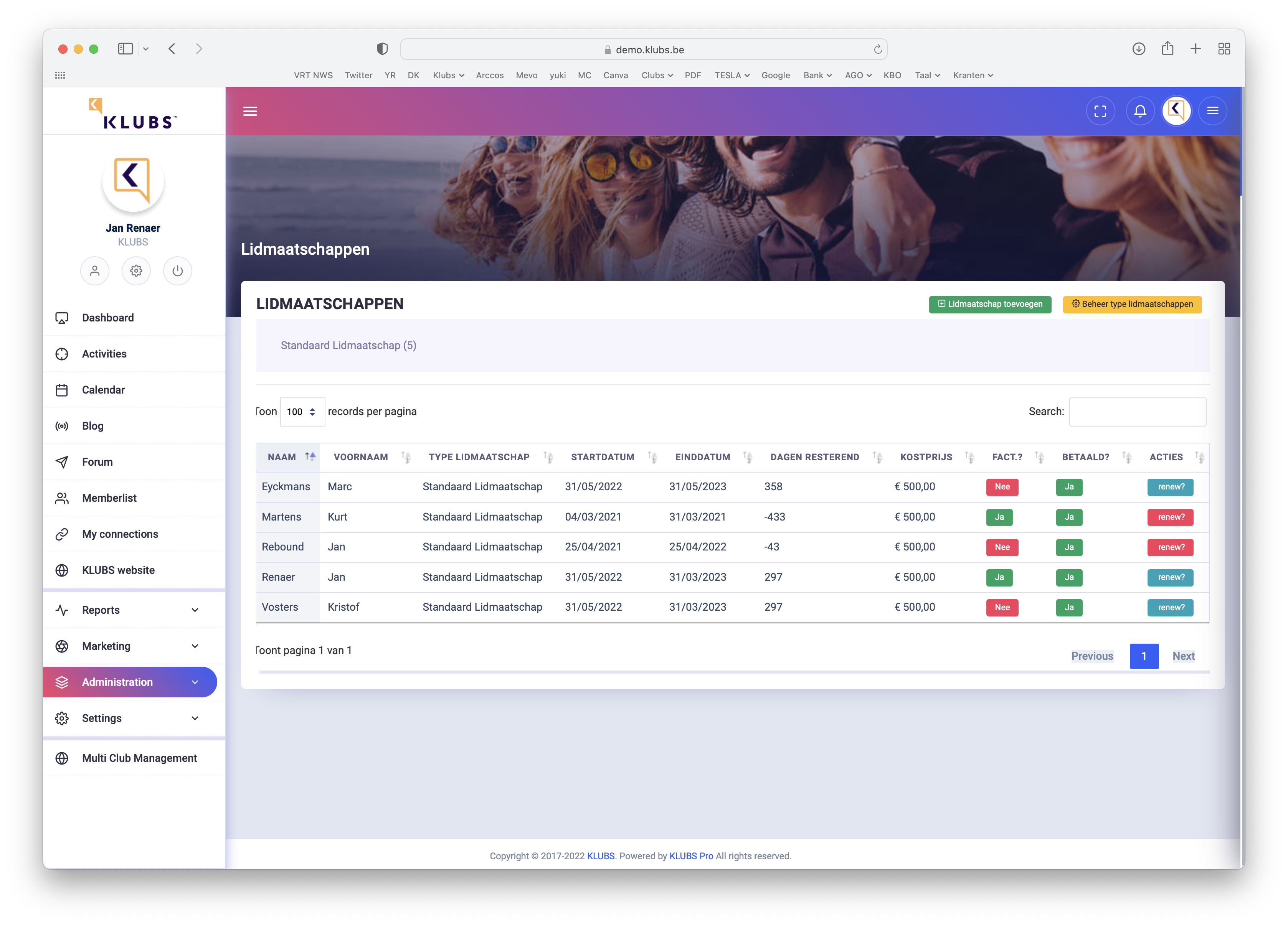
[Renew]: ability to renew this membership (if Red - membership expired)
Further indications (to be modified if necessary): "Invoiced" and "Paid"
2. Membership renewal
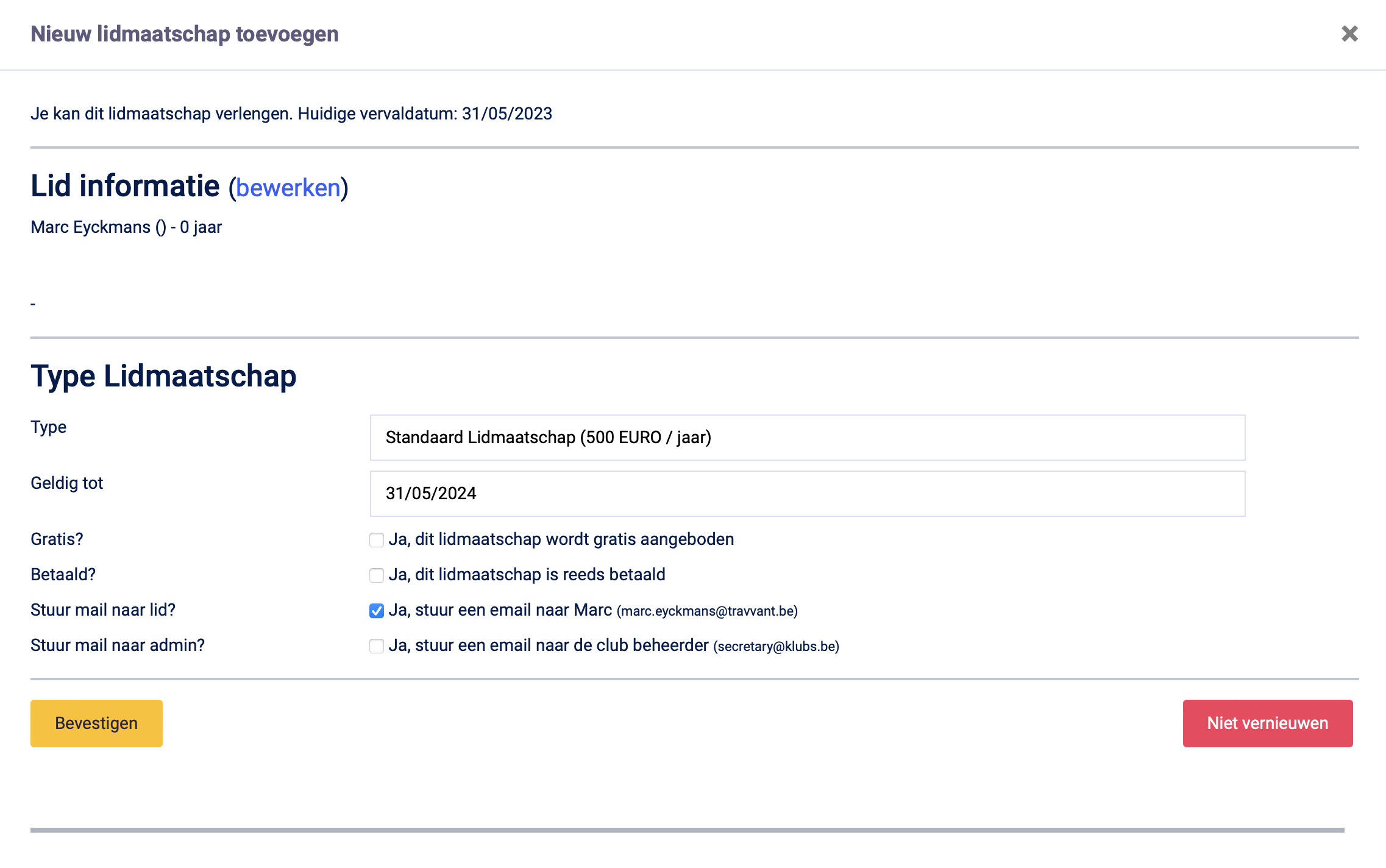
On the membership renewal screen, the financial info for this membership can be changed:
Type of Membership
Period of validity
Possibly free membership
Payment info
Communication options
3. Follow up
Follow up on payments:
The renewal email can be sent in cc to Admin, follow up via this email
Track in Clubs via Indication "billed" and "paid" on membership
Activities
1. Attendance list
Before proceeding with the billing of an activity, it is important to check the attendance list.
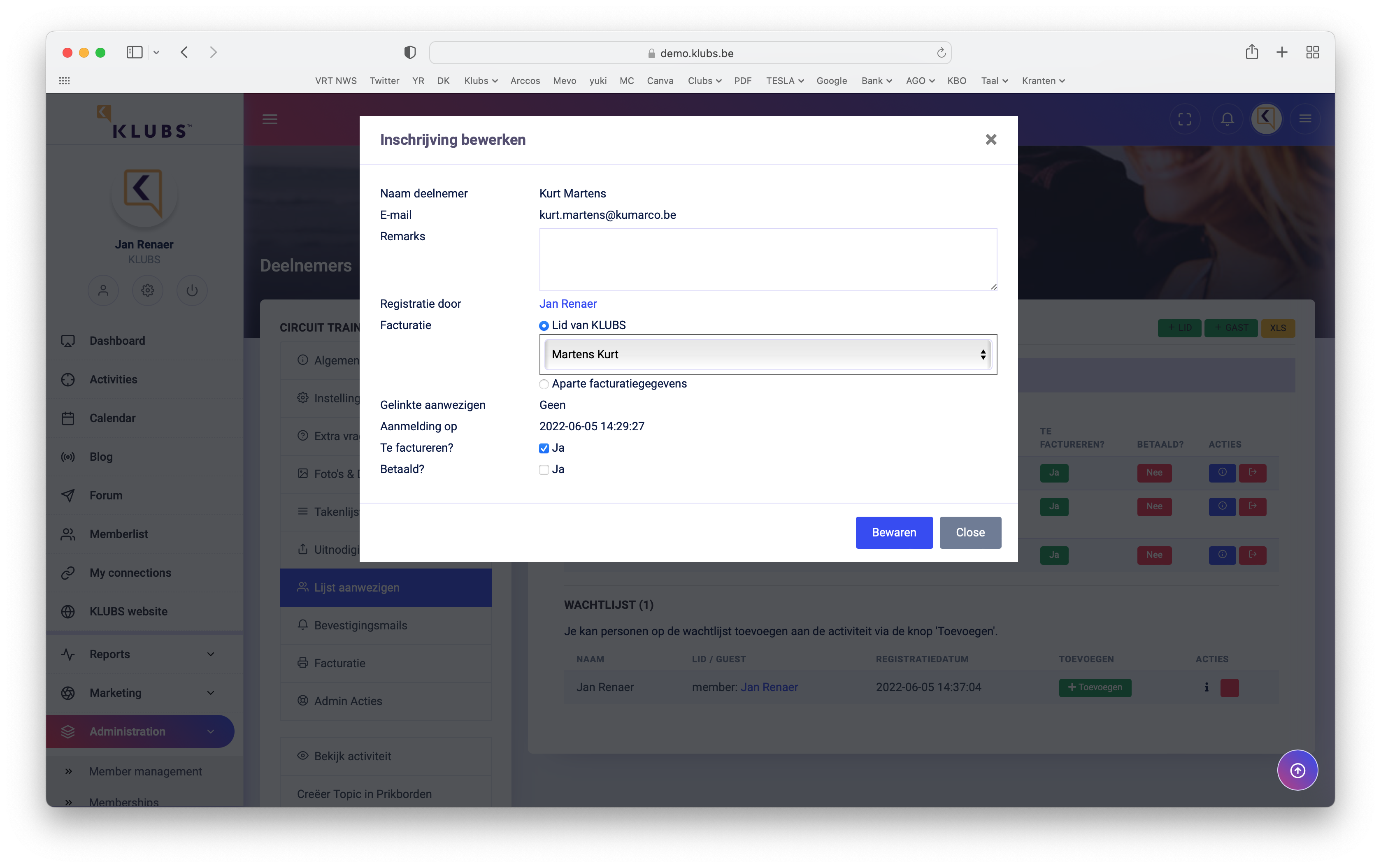
De-registration of those not present
Assign guests to the member in charge of billing
Optionally indicate that no billing is required - will not be included in billing list
Ability to indicate that this activity has already been paid for (see later)
2. Billing
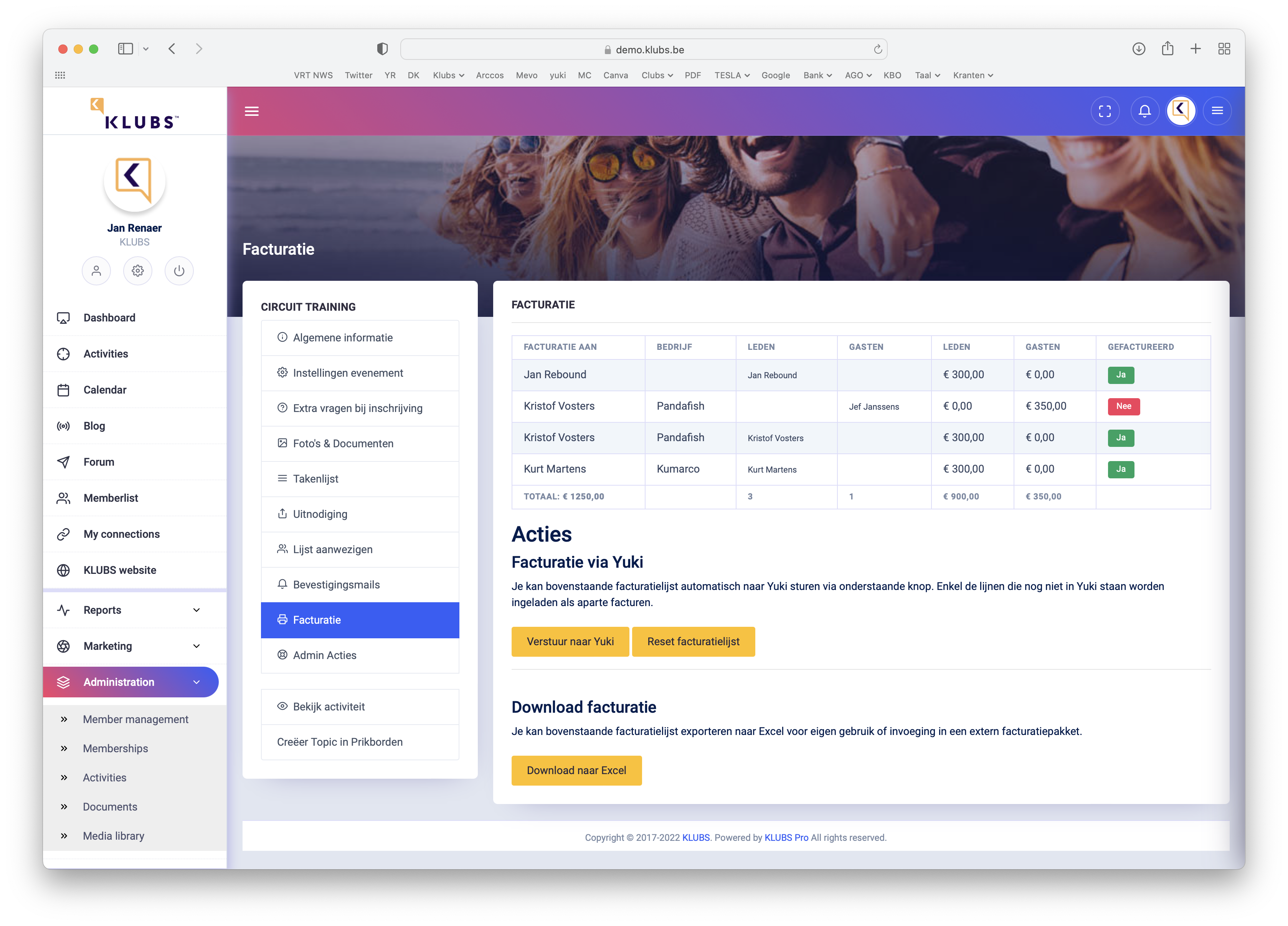
On the invoicing screen all the info needed for a final check before invoicing:
List of members and guests present
Indicative costs members and guests
Totals: attendees, amount members and amount guests
Billing status: invoiced or to be invoiced
Invoicing options, via Accounting or download to Excel
Optional billing list reset as well.
3. Invoicing guests
Possibility to specify separate billing info on the Attendance list (Company name, VAT no.) which is then included in the billing.
4. Billing
After forwarding to accounting or downloading the invoice sheet, the effective invoicing can then be finished.
Follow up on payments:
Manually: via checking bank statements and indication "paid" on the attendance list
Through the Open Items and Reminders functionality in Accounting.
Participation management covers the complete flow of a member's participation in an activity, and goes through following steps, also the different lists on the Activity:
Guests RSVP List of invitations and RSVP status
Registrations The status of registrations, cancellations, waiting list
Attendance - also with Mobile view and attendance slider Convenient attendance list to use during the activity
Billing Full billing interface with totals for Members and Guests
Also at the bottom of this topic is a method of how to deal with Waiting Lists.
And a separate type: Activity - External Organization.
Invited guests RSVP
After sending an Invitation, you can track the status of Invitees here, with indication of their RSVP status.
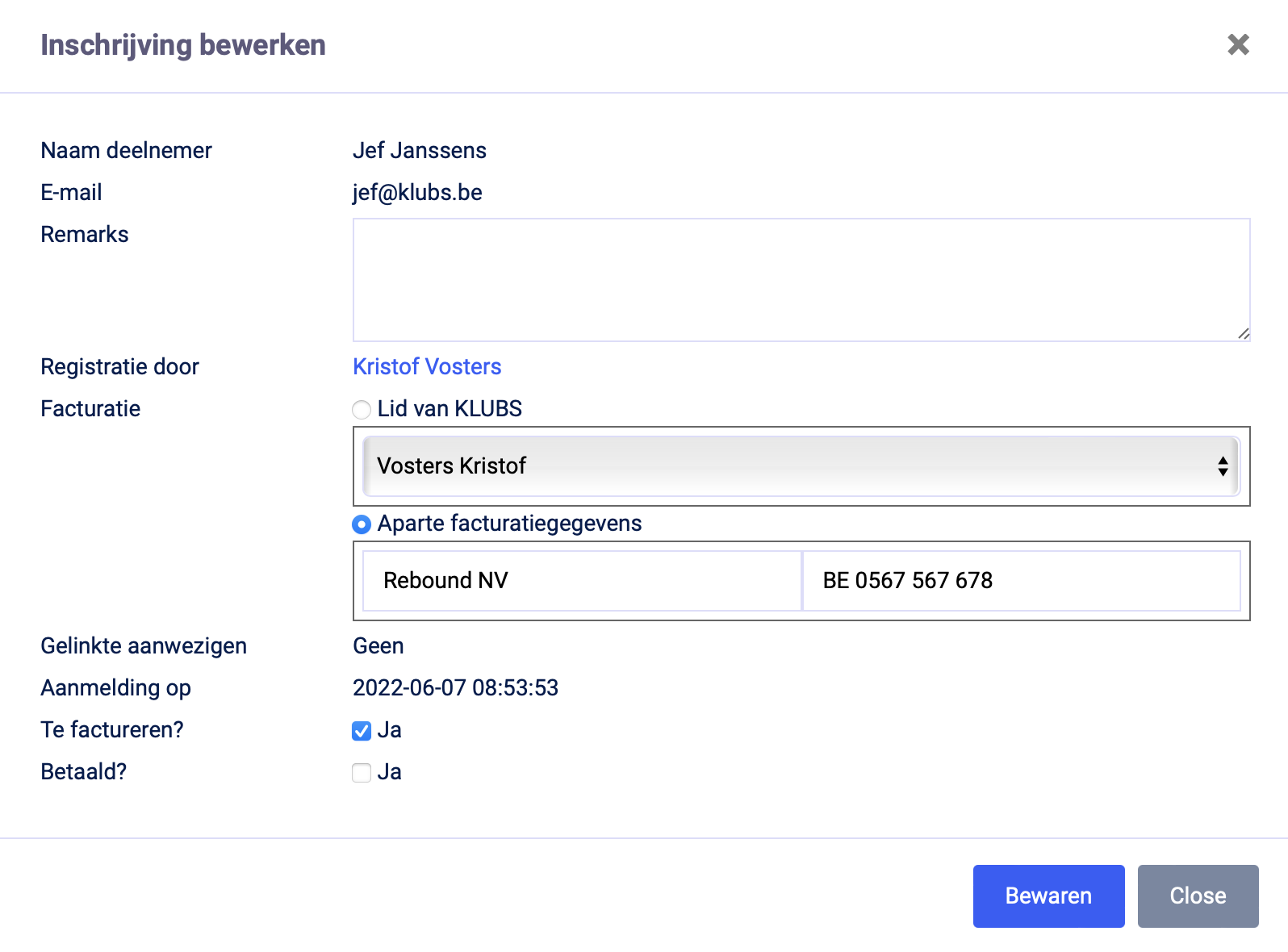
With the RSVP column now including a convenient admin edit option.
Entries
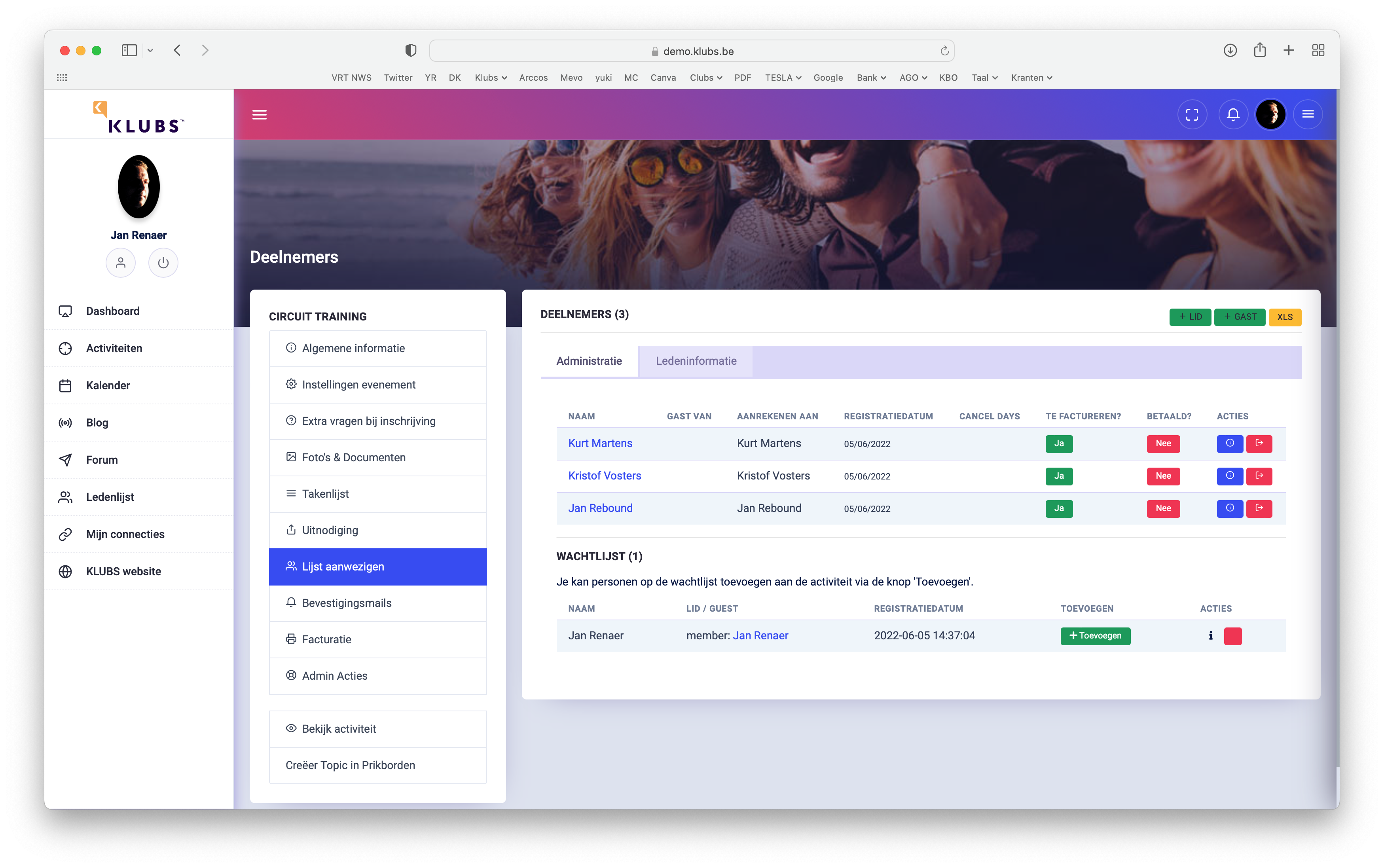
After Registration, invitees can be tracked in terms of status with Participants. And this in two views:
Administration
The pure administration of registrations with indication of admin info: registration time, possible deregistration, a two sliders(Billing and Payment) and Actions (Info and Delete).
Member information
The second view (Member Information tab) provides additional info around the member including from the Meta Fields.
Which fields appear here is determined on the Member Management: - Administration / Member Management - Button Display
Attendances
The Attendance list is then more likely to be used during the activity itself to register attendees. This is also then with a Mobile View, useful for use on smartphone or Tablet.
With here the ability to precisely track In/out timing.
And also checking the presence of a QR scan (ID, ...)
Attendance Tracking – QR Code
Closed-loop registration, if you are using the Attendance Register setting.
QR Code integration: generation of a unique QR code (displayed on the individual registration)
Display QR code: on the Confirmation – use #qrcode (Email text – Activity Confirmation or Activity / Communication – Confirmation)
Quick Check-in: Scanning this code at the registration desk automatically records the exact time of arrival and departure.
Scan: No separate scanner is needed; an iPhone (iOS) or smartphone (Android) is sufficient
Coming soon: This data will be seamlessly transferred to the upcoming Attendance Certificate reporting module.
With the following registration check and status indicators
Scan – In
Green: Valid scan of a registration
Orange: Scanning the same QR code again – "Already Registered" warning
Red: scanned an incorrect QR code – warning: “Not registered”
Scan – Out
Green: Person successfully scanned – scan timing indicator
Orange: Person has not yet been scanned – warning: person's name
Orange: Person had already been eliminated – warning: person's name
Red: QR code not recognized – "Not registered" warning
Waiting list management
Within Klubs, activities have a waiting list management.
[The use of Waiting Lists is managed through an Advanced Setting]
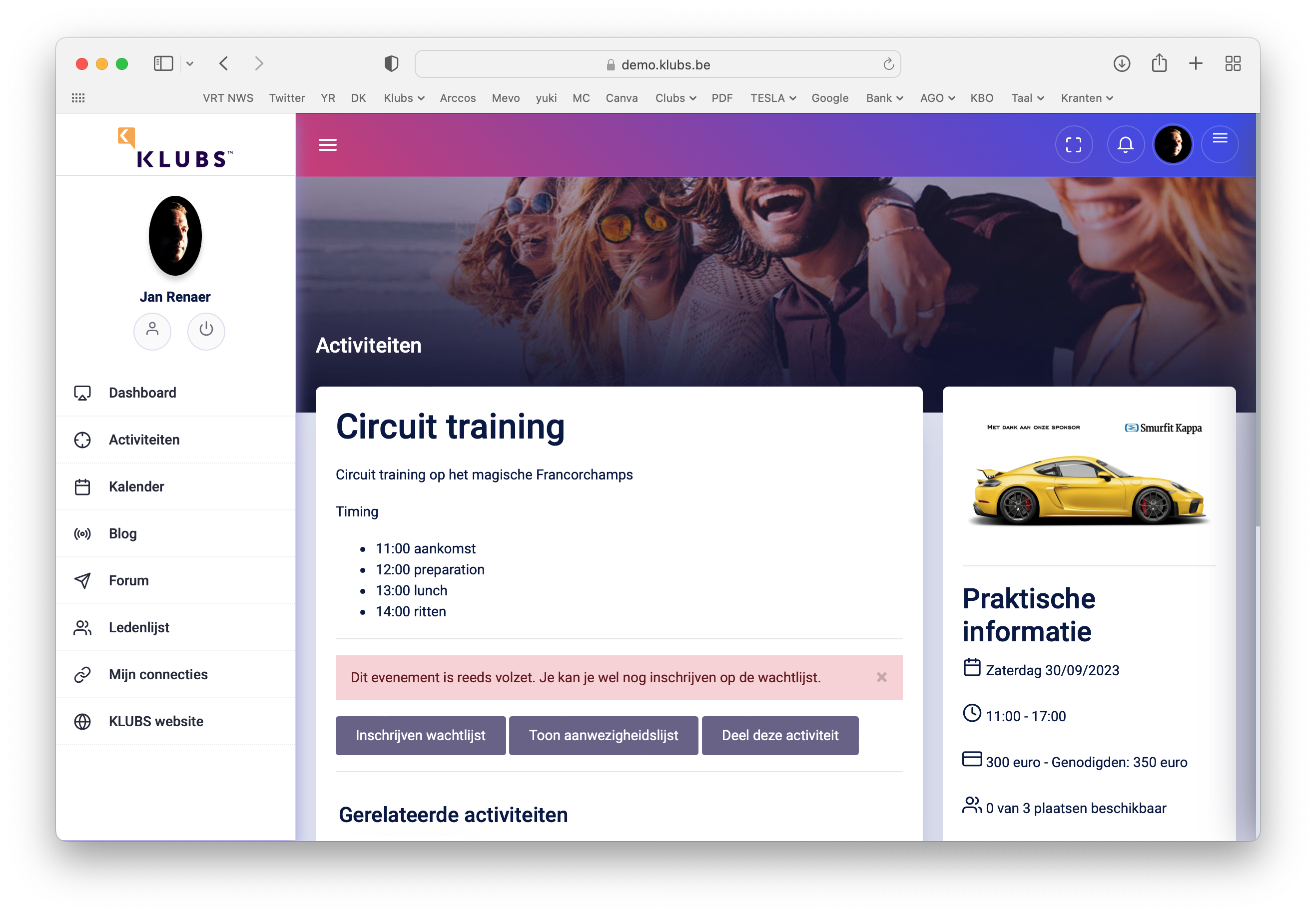
If the number of registrations is limited (number determined in the Event Settings - Total number of places available), only this number of people can also register.
In the event of additional registrations, they will be placed on the waiting list, and these participants will receive a notice and also a separate email with information about their enrollment on the waiting list.
This is clearly indicated in the activity summary list, see last line table:
20: number of seats available
43: number of registrations - so presumably some on the waiting list
However, it is understood that the club administrator remains in control of what he does with the waiting list. You can do this by going to the Admin of the Activity, and looking at List of Attendees. If there is a waiting list, it will appear at the bottom of the table.You can also edit this waiting list, for example, for participants who indicate that they no longer want/cannot be on the waiting list. Edit via the ⓘ button, delete via the 🗑 button.
If you want to move someone from the waiting list to the participant list, you can add them manually via the Add Participant button.
Activity - External Organization
For activities, published for members, but where registration is through an external organization, this can be indicated in the Activity Settings (Indication - Registrations through external organization?).
This results in the RSVP Buttons not appearing on the invitation mailing and the omission of the Register button at the Activity. And also indication on the Practical Details on the Activity.
The details of the activity should then include the modalities of registration, through the external organization.
Recruitment of new members can be done through a public link that can be announced by mail or possibly social media.
Settings
Member info
In Settings the possibility to make this link publicly usable and to decide the procedure to have new members approved by an admin administrator. Further settings regarding the information requested from new members during registration:
Personal data - is minimal information
Contact details
Billing information
Additional profile fields
Personal data
Contact details
Billing data
Profile Fields
Type of Membership
When registering, new members should also indicate the type of membership they desire. See the top of the registration page.
When managing Membership Types, the choice can be made as to which memberships can be chosen. For example, with no option to choose the "Honorary Member" type.
Introduction link
New member registration is then done through an introduction link: https://demo.klubs.be/register.php where "demo" should be replaced with the club domain name.
Privacy Statement
All new members are also asked to agree to the Privacy Statement.
Above the GDPR consent. https://demo.klubs.be/myprivacy, where "demo" should be replaced with the club domain name. With an additional option to make certain personal information visible or not visible to other members.
Membership is typically tied to a calendar year. This presents challenges when members join during the year (how much should be charged for the remainder of the year?). Klubs offers the option of continuous memberships, valid throughout the year (day-to-day membership). Renewals are therefore handled (semi-)automatically, saving your administration time and spreading cash flow evenly throughout the year.
Start
The Start of membership is recorded at registration.
Where when adding a member, the start date and first end date can be defined.
Memberships may expire throughout the year. This is because memberships can start throughout the year. But also since memberships can have varying periods.
After the expiration of membership periods, memberships should be renewed. Here help Clubs with (semi-)automatic Membership renewals that indicate when a membership is about to expire (3 months) [renew - blue button] or has already expired [renew - red button].
Activities involve a multitude of communications such as invitations, reminders, confirmations, ... and then all this to different audiences such as members or member groups, attendees, ...
To make this somewhat useful and clear, this communication has been bundled into a separate communication functionality.
Also, all versions of communications are also kept, for later reference.
Communication Type
For Activities Communication, there are 2 major types:
Mail Campaigns
Sent to a larger group:
Invitation Sent to all members or member group
Reminder Sent to invitees who have not yet registered
Confirmation Sent to those registered
Thank you Sent to those registered.
Evaluation Evaluation form after (or before) the activity
Other
Notifications
Automatically sent after a specific action by a member
Registration Notification mail sent immediately after registration
Unsubscription Notification mail sent immediately after the Unsubscription (outside cancellation period)
Unsubscription Notification mail sent immediately after the Unsubscription (within cancellation deadline)
With for the Deregistration 2 versions depending on whether the Deregistration happens outside or within the Cancellation Period. This to then for a separate handling or a specific notification in terms of charging costs.
Communications Content
For each type of communication, there are standard texts that are then used for the initial formatting of the mail - Email Texts.
This formatting (texts, images, ...) can then be customized for each activity.
And also the text of the automatic individual notifications can be customized here, then specifically for an activity. Then, for example, for the notification of separate payment info for this specific activity.
Communication Formatting
For formatting, there is the Text Editor for inserting text, images and especially for formatting.
Personalization of communications can be done through the use of Shortcodes.
And here different Shortcodes can be used:
Profile info: Name, e-mail, company, VAT no, ...
Meta fields: free fields allow you to further complete the member profile - Meta fields
Mail to members previously invited to this activity, with for reminder target group selection based on:
General: members not yet registered
RSVP: Perhaps, "no response"
...
However, this only if an Invitation was sent in advance. With the same selection for the Reminder, for example Member Group, as with the previous Invitation.
Confirmation
Confirmation to those present:
All present, possibly members and guests separately
Specifically, registrations through the public link
...
Post-event Thanks / Evaluation
Mail afterwards with a brief reflection or evaluation with some questions.
All present, possibly members and guests separately
Specifically, registrations through the public link (for membership recruitment)
...
Communication send out
Finally, as with the Mail Campaigns, the ability to send a test mail a review before final activities communication.
And also additional possibility for sending an Individual mail to a specific member or enrolled person.
Communications History
Full communication history is also kept for each activity. For later reference. And so now the ability to reuse sent mailings.
Communication Reporting
Reporting for each communication can be viewed in detail. This is to inform members around mails sent / arrived or not. Be sure to also check out separate support topic here around Mail Delivery.
Mail Indication: Type of Mailing, Subject, Sent from
Shipping info: Sent, Timing
User actions: Delivered, Opened, Clicked (attendance buttons)
In Klubs, functionality already existed to add specific fields to the member profile (such as golf info or graduation year, etc.).
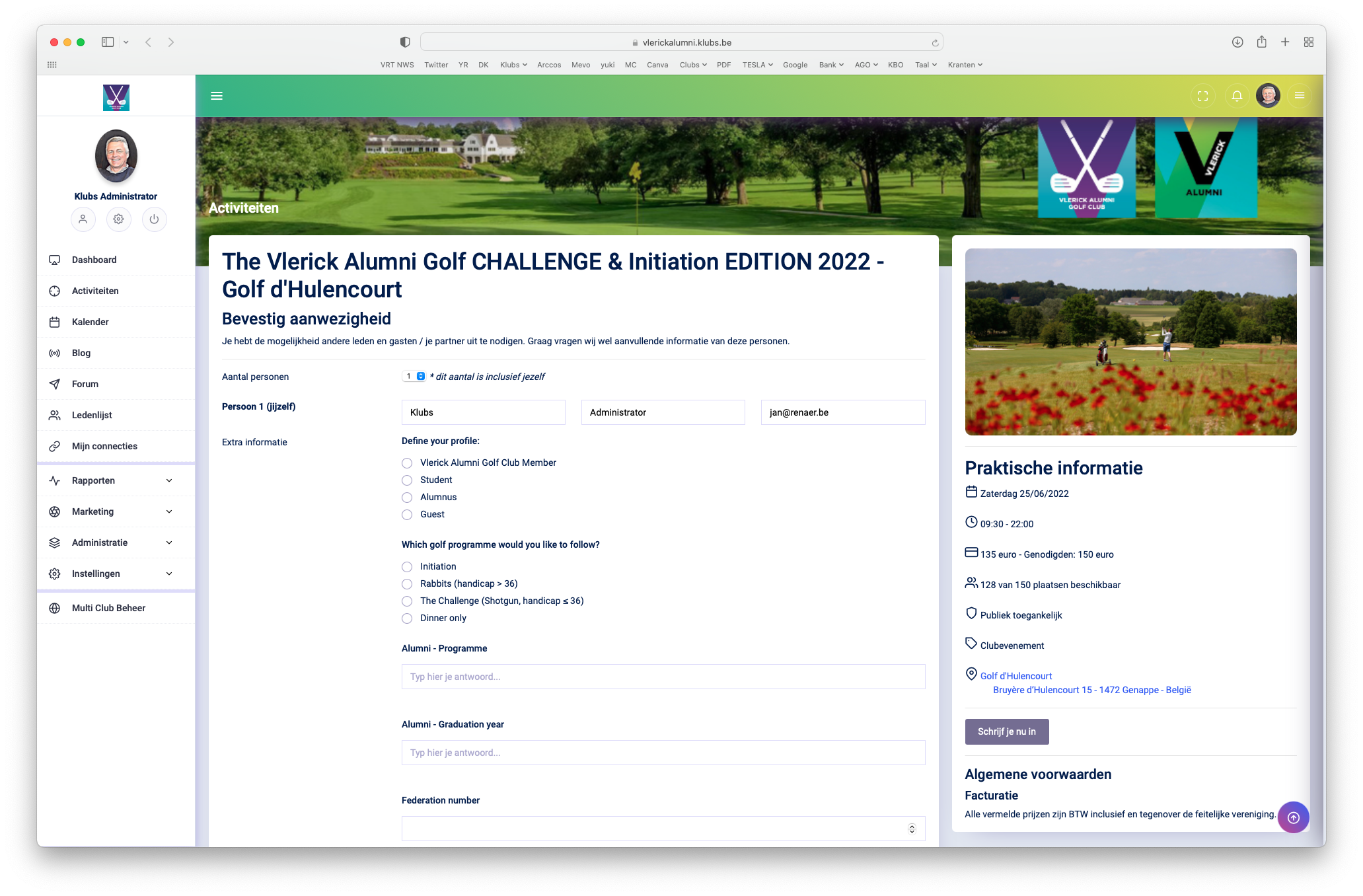
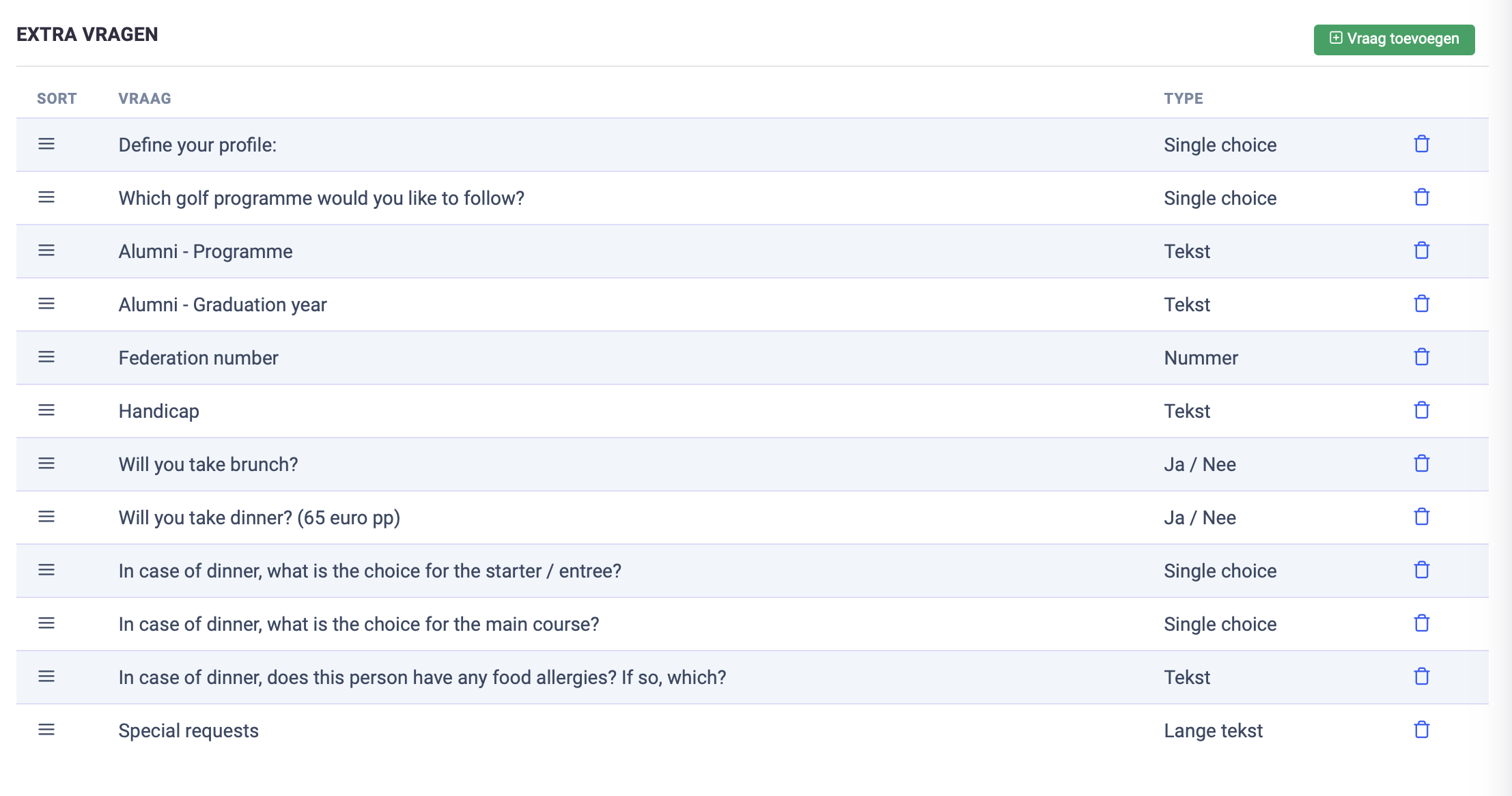
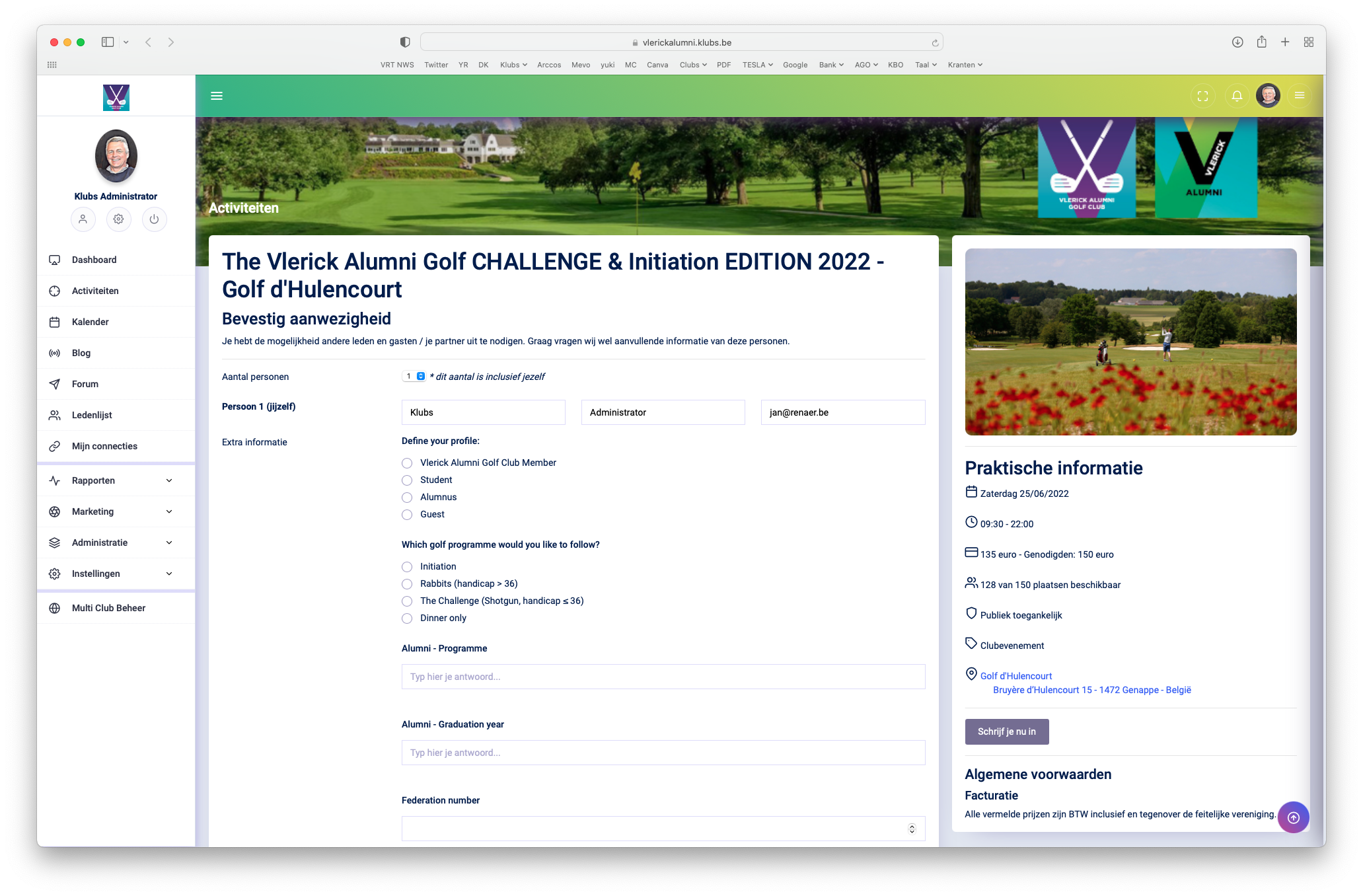
And now this functionality is also added to activities. This gives you the opportunity to collect additional information during registration.
The requested information can be diverse such as golf info or type of bike for a sports activity or simple menu information.
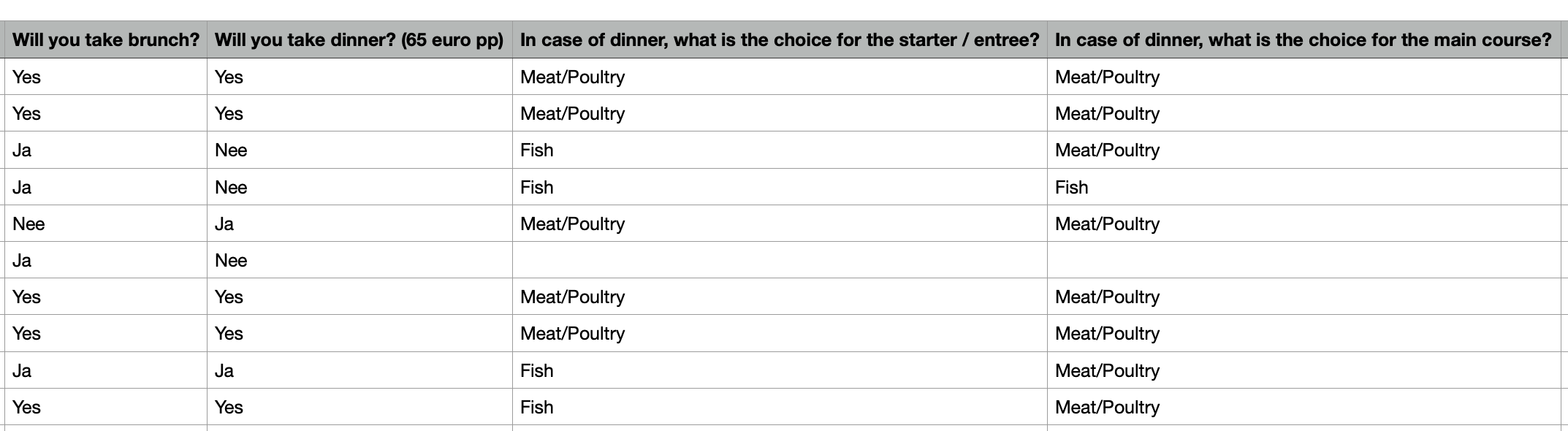
This information is stored per participant with the activity, can be exported in a download sheet and can be used for financial processing.
Configuration
The Activity Query functionality is configured in the Activity Detail
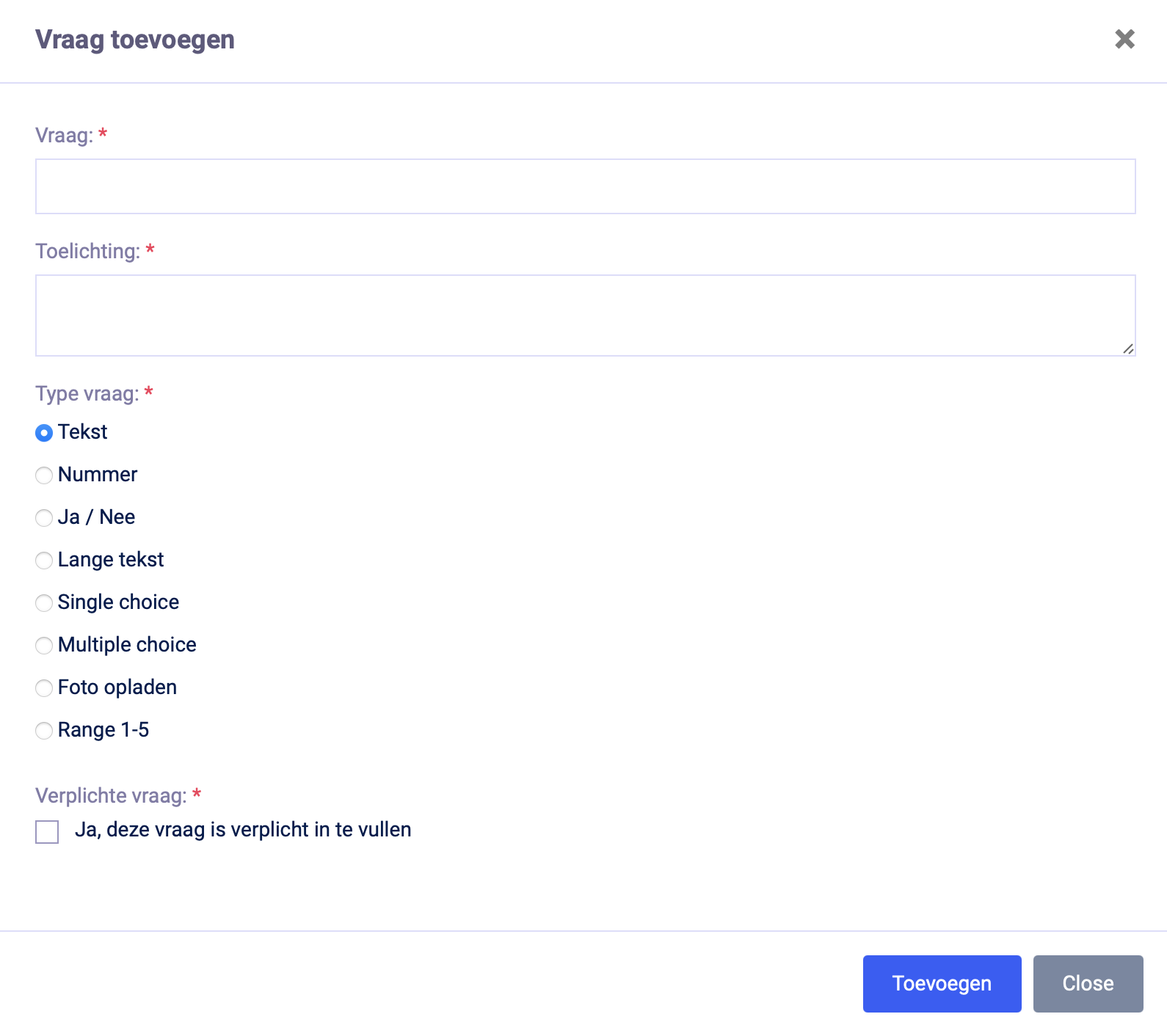
Menu Admin / Activities - Additional questions on registration
An unlimited number of questions can be added.
And a full set of type questions is also available
Type of questions
Text
Number
Yes / No
Long Text
Single Choice
Multiple Choice
Picture upload
Range 1-5
Setup
In addition, you can configure:
Question
Description - displayed during registration
Required - an answer is required for this question
Order - the questions can be rearranged
Input
When additional questions are configured for an activity, they appear automatically during the registration process.
This is for registration of members, guests and also on the public link.
In addition, the questions for all participants can be edited in the admin area.
Use
Information is tracked for each participant on the activity.
Export is possible in a download sheet and can be used for financial processing:
Menu Admin / Activities / List of participants - XLS (button)
Expansion
With the sort option, you can now also arrange the meta fields to make the query more clear. Possibly, by extension, set up a structure of the additional fields.
With an activity there are different planning dates possible in terms of settings such as "published from" date and "subscribe from" date. So you can prepare future activities, indicate from when they may be visible to your members and from when people can register.
Publication - Visibility
A fully formatted activity then becomes visible in the activity list from a specific moment (date - hour indication). Handy to manage your activity list optimally.
Subscribe - From
Vanaf dit specifieke moment (datum – uur) zijn inschrijvingen mogelijk voor deze activiteit. Vooraf verschijnt de melding – Je kan je inschrijven vanaf <datum/uur>, nadien verschijnt de normale button om in te schrijven.
Subscribe - Up to
As of this specific time (date - hour), registrations are no longer possible for this activity. The button to register will then no longer be available.
Cancellation deadline
Any cancellation within this period, before the activity, will result in a separate email being sent - Unsubscribe Activity (Settings - Email Texts).
This cancellation period is mentioned here, possibly with indication of a cancellation fee.
The cancellation period is up to #cancel days before this activity. For late cancellation (depending on the activity and reservations made), the club reserves the right to charge a partial fee.
In case of late cancellation, this is also clearly indicated in the activity summary.
With indication of cancel days:
[Green] - cancellation outside the Cancellation Period
[Red] - cancellation within the Cancellation Deadline, with indication of the number of days before the activity
Deregistrations management
Management terms
Among the activities, there are a number of management terms, 2 of which need some further explanation:
Register until: after this date you cannot register
Cancellation Deadline: If you deregister within this time period, charges may be incurred if applicable
Unsubscribe notifications
Upon both Enrollment and Unsubscription, an automatic email will be sent to the individual - Activities Communication
There is the possibility of two notifications when unsubscribing from an activity: And this is in relation to the Cancellation deadline (as stated on the Activity Settings)
Notification outside the Cancellation Period
Notification within the Cancellation Period
With here then 2 versions depending whether the Unsubscription happens outside or within the Cancellation Period. This to then for a separate handling or a specific notification in terms of charging costs.
Use
An example makes this procedure clear. After the registration deadline (Register until) the activity is closed because you have to order the catering. However, you still let the members unsubscribe (due to illness) in order to be able to adjust the number of chairs / cover table.
If a member cancels within the cancellation period, he will receive a separate mail (Mail Texts - Unsubscribe Activity). In this you can then mention the cancellation conditions (costs, ...).
To be notified of these particular unsubscribes, you can have these emails sent specifically to the admin. This by listing an email address in the Additional Email Addresses, at the bottom of this Mail text.