clubs_support

Accounting integration

For clarification around your club's accounting, please refer to a Long Read around administration, bookkeeping, VAT status, debit notes.
Clubs - Accounting and Administration

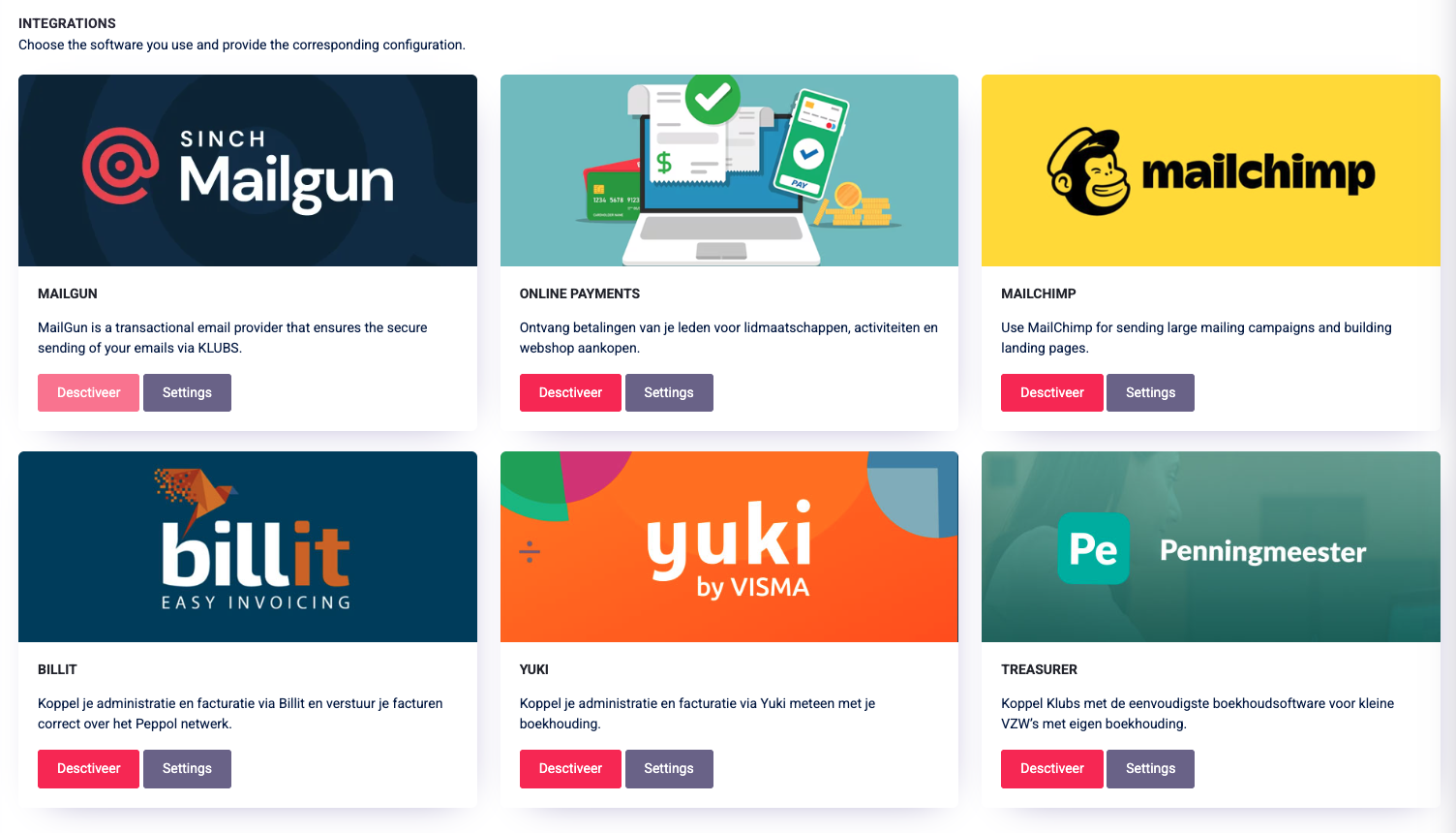
In terms of accounting and invoicing, Klubs has an interface with accounting software:
(in descending order of integration).

  • Yuki: for complete double-entry bookkeeping
  • Treasurer: for Single-Entry Bookkeeping
  • Billit: invoicing tool (Peppol compliant) and gateway to around 40 accounting packages

This integration is, for all of these, quite complete:

  • Billing of Memberships.
  • Activity billing: separate lines for member and guest
  • Various settings for integration with Klubs

Follow-up – Principle of trust

We apply the principle of trust when integrating Klubs and the accounting system. This is designed to minimize the administrative burden on club administrators by assuming the good faith of the member.

As soon as a membership is renewed or a registration for an activity is completed, the system immediately generates an invoice. We assume that the payment obligation will be fulfilled as standard.
All financial follow-up—including the status of payments and sending any reminders—takes place exclusively in the accounting system. There is no automatic feedback of the payment status to Klubs.
This method means that, as an administrator, you do not have to check each member individually in two systems. You only need to take action in exceptional cases (such as structural non-payment).

In the unlikely event that a member decides not to register or fails to make the payment, we will treat this as a manual exception:

  • In accounting, a credit note is issued to offset the outstanding invoice.
  • In Klubs, the corresponding transaction is deleted so that the member lists and activity statistics remain up to date.

This method prevents double data entry and ensures that the accounting remains the leading factor for your financial follow-up, while Klubs maintains its focus on member management.


Double-Entry Bookkeeping – Yuki

When using an accounting software for complete, double-entry bookkeeping, diaries are used.

For each transaction (membership, activity invoicing), a draft invoice is created by Klubs via the accounting interface. After reviewing it, it can then be finally created and sent.
All necessary data (customer, billing info, VAT, ...) are provided here by Klubs.

In double-entry bookkeeping, when an invoice is created, an entry is immediately created in a journal. This is then reversed when payment is received.

For more info on Yuki and pricing - https://yuki.be/pricing/ondernemer/

Setup

Setup is done in the following steps

1. Yuki Setup

For Yuki setup, it is best to have an accountant assist you. Setting up the accounting schema, invoice layout, analytical accounts and projects, ...

2. Clubs Integration

Within clubs a quick link after following settings:

  • Yuki: API key and Administration ID (from Yuki set-up)
  • General ledger accounts for the various entries

Also check the financial institutions: VAT rates and VAT pricing.

Processing Memberships

Both the creation and renewal of an individual membership and mass renewal result in invoicing and follow-up in the accounting system:

Follow up on payments:

  • Fully integrated into the accounting system with the Reminders feature
  • Failure to pay membership invoice, any credit note, and removal of member by changing Member status to expired.

For VAT-compliant memberships, the VAT percentage may still need to be adjusted for foreign invoices (reverse charge VAT).

Processing Activities

For the accounting processing of Activities, there is the Preparation in Clubs (Participation Management: Attendance and Invoicing).
Financial Processing

Follow-up on payments

  • Follow-up is done here within the accounting department by following up on invoices to be received, or sending the late ones a, automated, reminder.
  • If invoice is not paid, (if billing in advance) deregister from the activity, or apply club procedure.

Single-entry bookkeeping – Treasurer

When using a single-entry accounting software, all entries are based primarily on actual receipts.

A transaction from Klubs is sent through the interface and a draft invoice is created. This can, after review, then be finally created and sent.
All necessary data (customer, billing info, VAT, ...) are provided here by Klubs.

Now with full functionality:

  • Bank integration: retrieval of bank files (CODA) and semi-automatic processing
  • Accounts receivable management: outstanding invoices, reminders, etc.

For more information about Penningmeester and pricing, visithttps://www.penningmeester.be/.

Setup

1. Treasurer Setup

You can set up the Treasurer yourself, but have it checked by an accountant if necessary.

2. Clubs Integration

Within clubs a quick link after following settings:

  • Treasurer: API key
  • General ledger accounts for the various entries

Also check the financial institutions: VAT rates and VAT pricing.

Processing

Processing is done in the same way as described above for double-entry bookkeeping.


Accounting Gateway – Billit

Billit is an invoicing tool for digital invoicing and is therefore Peppol compliant.

When a transaction is made from clubs, it is forwarded and tracked via the interface, and a draft invoice is created. The invoice is complete with the club's layout (logo, colors, etc.) and also includes a QR code for payment.

Now with full functionality:

  • Bank integration: retrieval of bank files (CODA) and semi-automatic processing
  • Accounts receivable management: outstanding invoices, reminders, etc.

For more information about Billit and pricing, visithttps://www.billit.eu/en-int/product/integrations/.

Setup

1. Billit Setup

You can set up Billit yourself.

2. Clubs Integration

Within clubs a quick link after following settings:

  • Billit: Company ID and API key
  • General ledger accounts for the various entries

Also check the financial institutions: VAT rates and VAT pricing.

Processing

Processing is done in the same way as described above for double-entry bookkeeping.

Gateway

Billit: a gateway to around 40 accounting packages.

Read more

Prospects

Klubs is a Membership platform.
Registered members have a login, can register themselves for activities, as well as register guests, connect with other members, view their contact info, in other words use their Membership.


Prospects

There is also the possibility to keep prospects within Klubs, in order to further develop your club. However Prospect lists are supplementary, and cannot be used as membership-replacement, for example for extensive mail campaigns or activity registrations.

Use

Prospect lists can be used in the Mail Campaigns, for sending the calendar of activities or membership recruitment.
Since prospects do not have a login they cannot subscribe themselves. This can be done after reply to a mail campaign, by the secretary, through the admin functions.

Setup

Prospects can be added through Member Management - Create Member
And then select Member Type - Prospectives.

Restrictions

During the first year, the number of prospects is unlimited.
Starting from the 2nd year, the number of prospects is limited to the number of then registered members.

If the number of prospects substantially exceeds the number of members, Klubs reserves the right to charge additional license fees (maximum €1.00 per additional prospect per month) here.
This is in view of the additional cost for data storage and especially additional mailing costs.

If the number of public registrations substantially exceeds the number of member registrations for an activity, Klubs reserves the right to charge additional license fees (similar to the license fee) here.
This is in view of the additional cost for data storage and especially additional mailing costs.

Read more

Activities - Media

Among the activities media a number of types each with a separate use:

  • Photo report
    Used for media sharing (via admin or attendees) after the activity.
    Photos are displayed with the activity (recent activities) and are available in fuller resolution.
  • Activity Attachment
    Used for distributing files typically prior to the activity such as directions, manual, reports.
    Given the usually larger files sent as attachments to activity communications

Media library

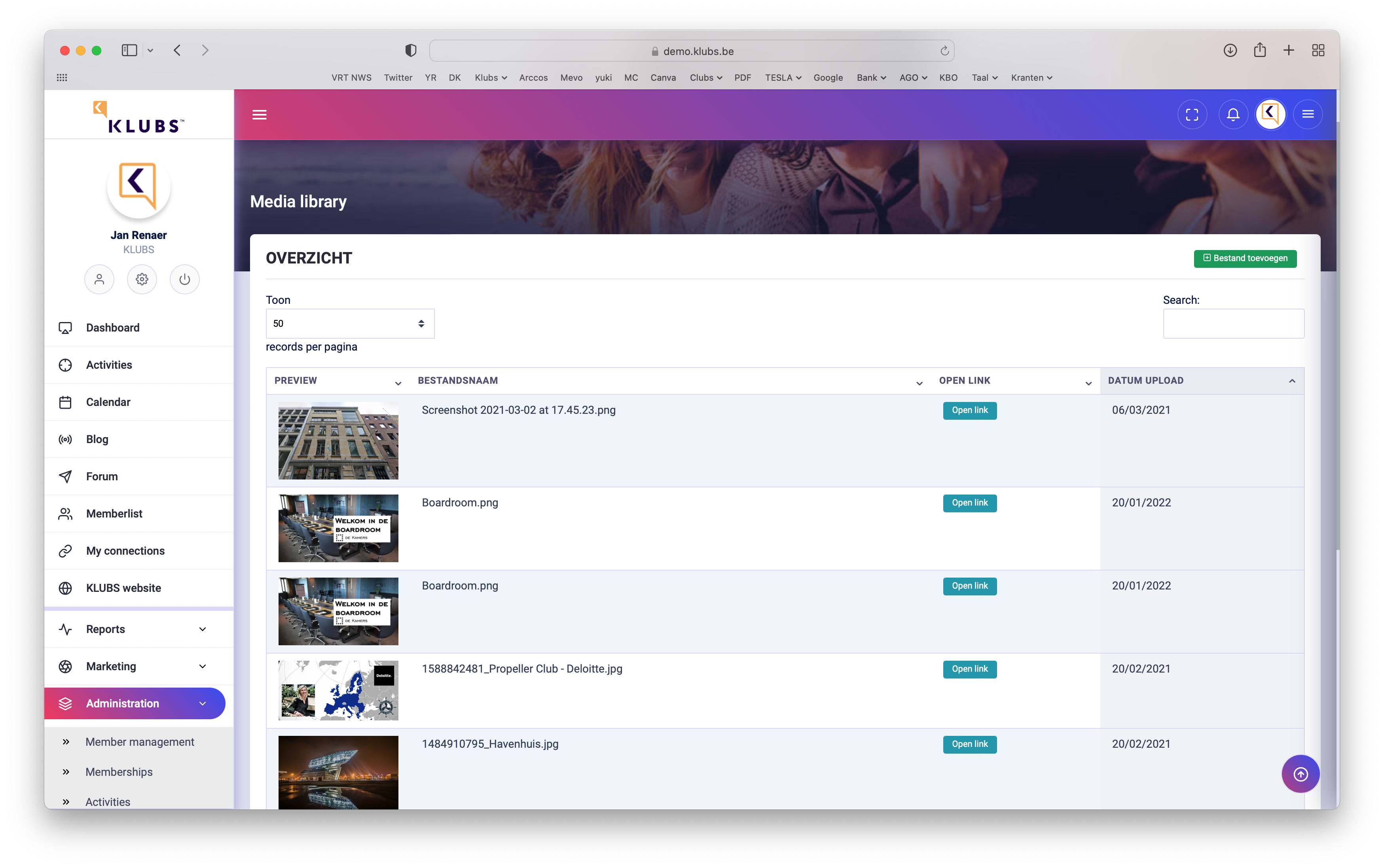
Share multimedia of your activities with members present and also allow them to upload and publish their photos. Also possibility to manage and archive club and board documents.

Input

When managing the Activity, select - Photos & Documents
Here you can then add the files and set the visibility per activity.

Upon indication of the checkmark, this is treated Activity Attachment (not as a Photo Report).

Management

All media can still be managed separately in the Admin area, at Media library.


Photo Report

In the members menu (Activities) search for a recent activity.

Media visible on detail page of activity.

Activities Appendix

Additionally, you can also upload media that is visible, and thus usable, prior to the activity (such as route, manual, ...).

It will appear at the bottom of the activity description as a download link, for users.


Media size

We allow large files up to 

If necessary, resize the pdf using a tool:

Read more

Images in communication

By default, the necessary images are added, directly from the activity, in the corresponding mail.
But additional images in communications or mail campaigns are also possible.

Editor

For a full explanation of the editor, please refer to the separate Support page, Text Editor.

Editor
Editor

Adding an image is done through the editor - Insert Image.
Through Upload Image you can retrieve an image from your desktop and insert it.

Image Edit

Image With
Image With for mailings to edit to 600 pixels
Click on the image to display the Image Edit.

  • All images are loaded in full size
  • Through the Image edit you can change the dimensions
  • Optimal for mailings - with 600
    (the height then changes accordingly)

Image Resolution
Image Resolution for mailings editable to 72 dpi
A simple image tool is probably needed for this.


Activities Visual

Activity visuals are used responsively and automatically adapt to the screen size of laptops, tablets, and smartphones.

Recommended guidelines

  • Format: Landscape 3:2 or 16:9
  • Safe zone: Keep text and logos within the middle 80% (due to cropping on smartphones).
  • Contrast: Improve readability by using high contrast (white on dark / black on light).

Image Tool

Canva is a budget-friendly online tool for creating images.
https://support.klubs.be/knowledge-base/image-tool/

Read more

Profile - Meta fields

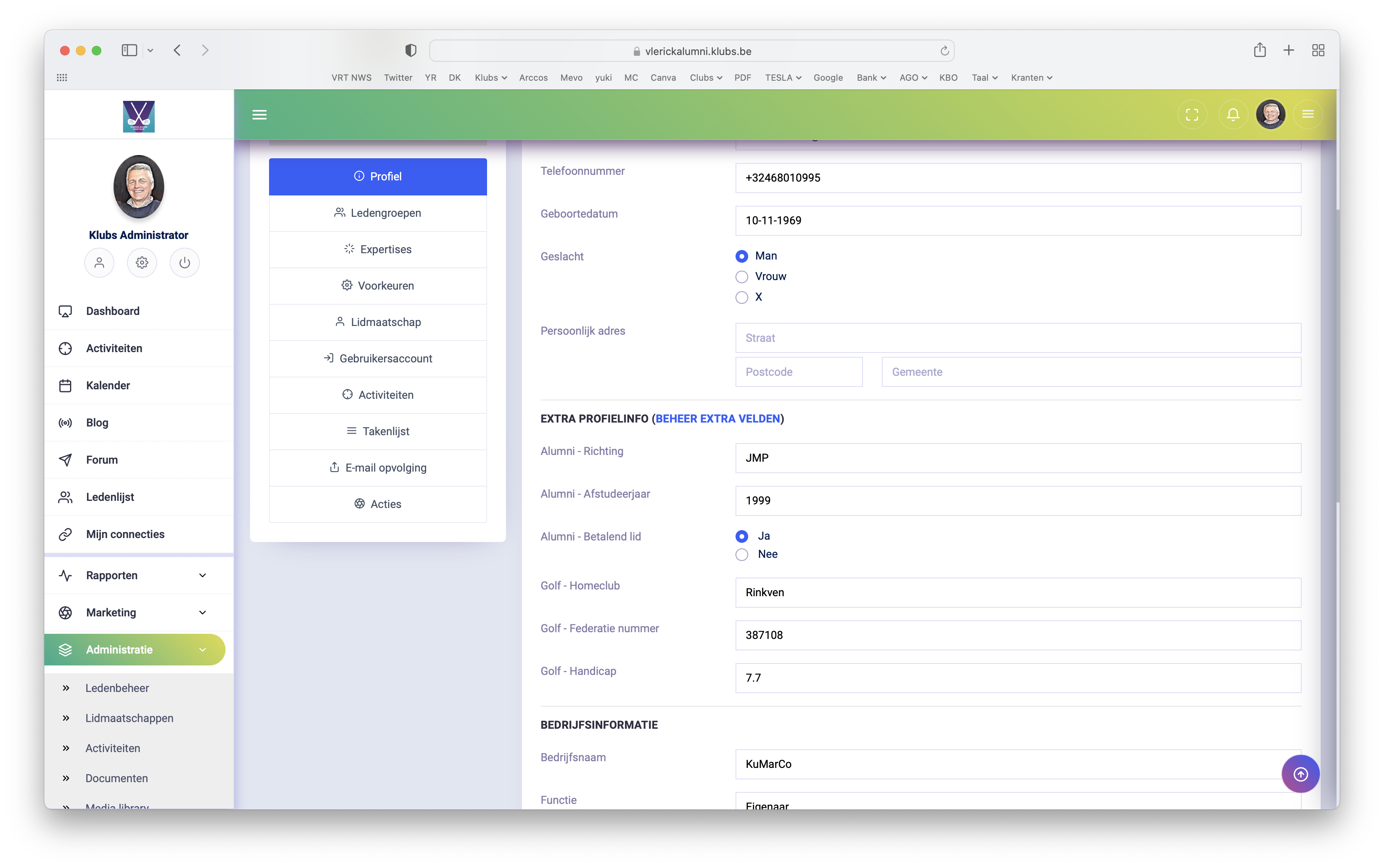
Meta Fields

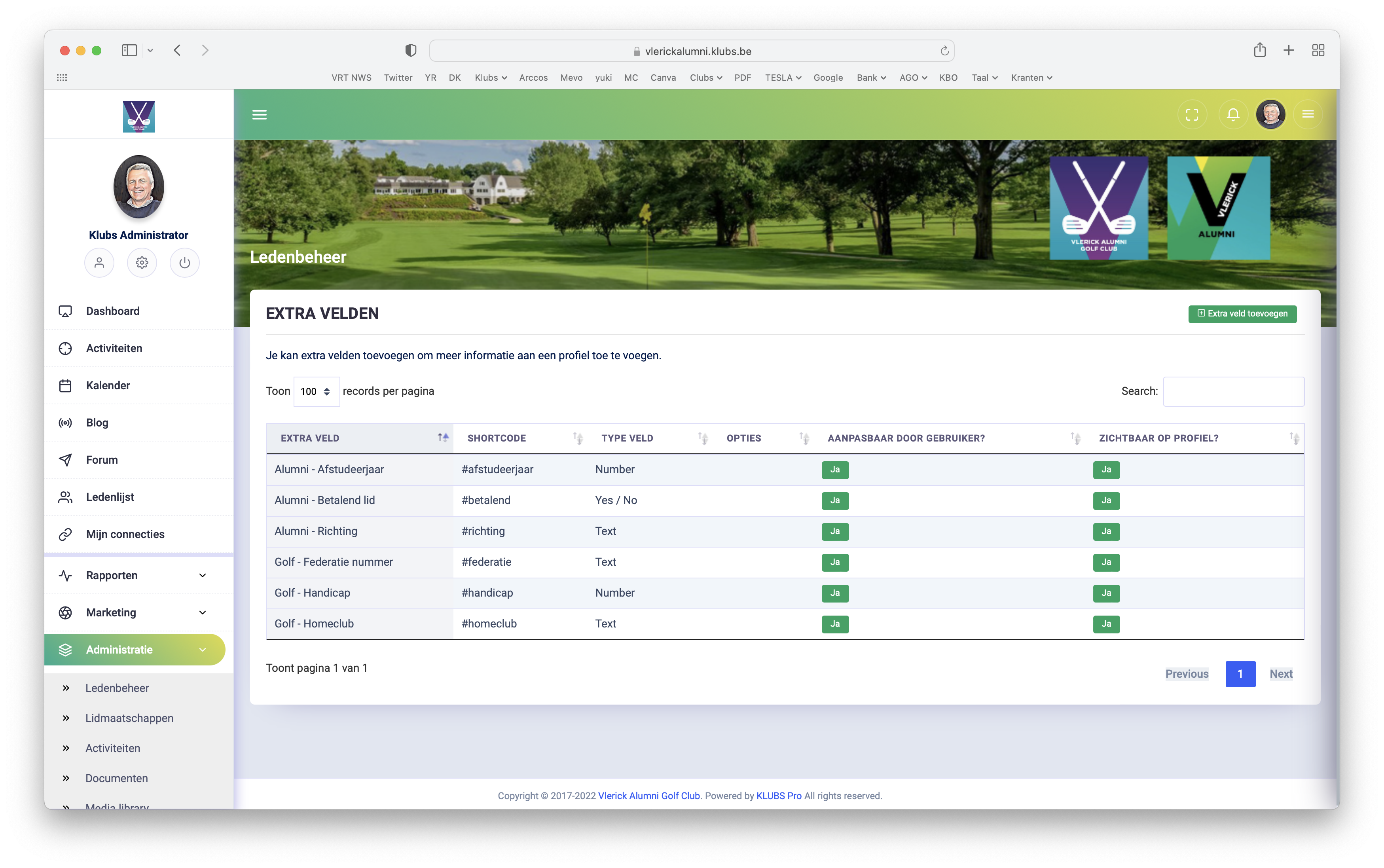
Meta Fields or free fields allow you to further populate the member profile with info such as fields of interest, preferences, golf handicap, federation number, LinkedIn link, ...

An indefinite number of fields is possible.

And a choice of types: text, number, date

Setup

Field types

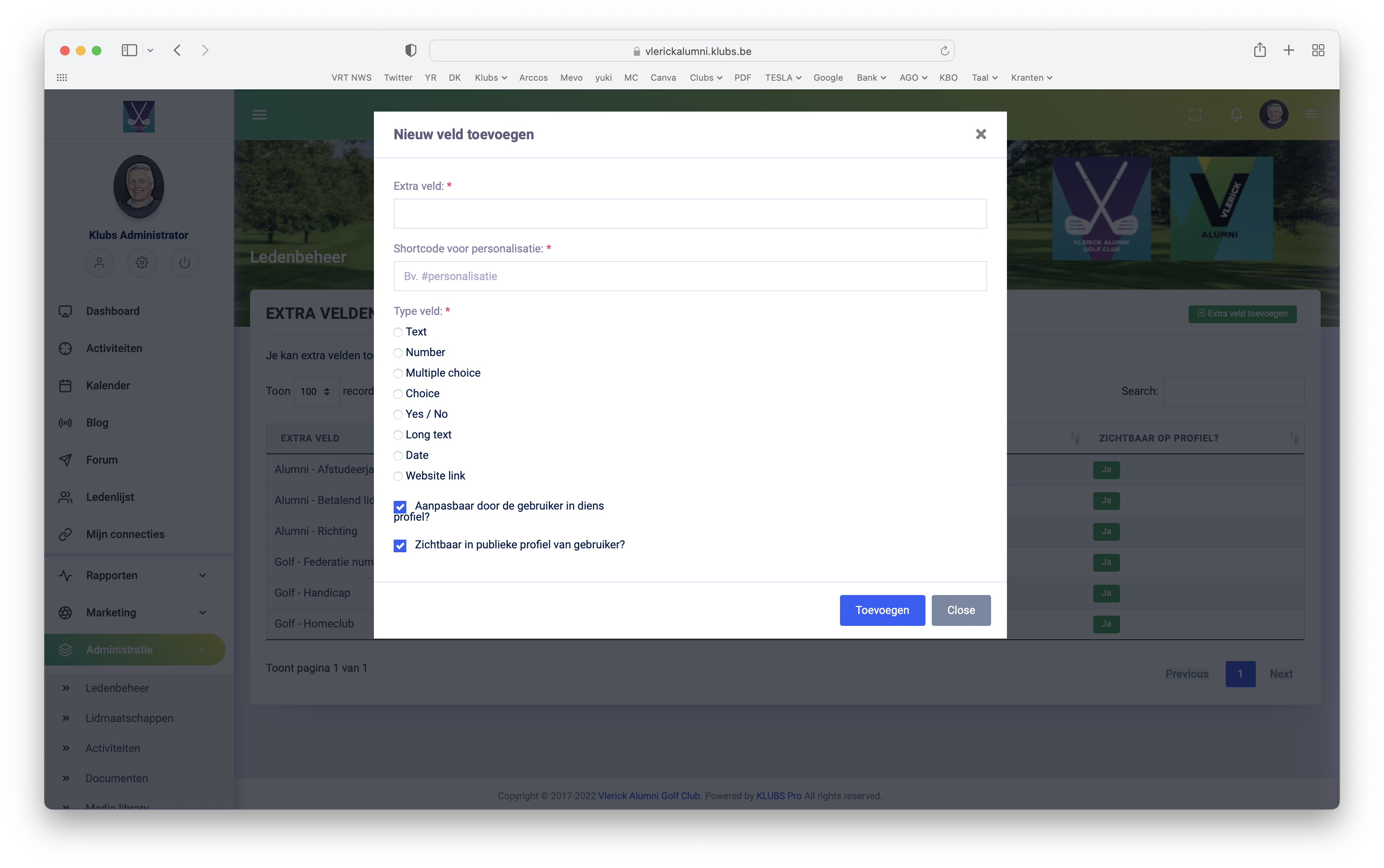
Within administration, at member management, possibility to create Additional fields (Meta fields)

  • Text: short text
  • Number: number
  • Multiple choice: multiple choice, with indication of selection - multiple selections
  • Choice: multiple choice, with indication of selection - 1 selection
  • Yes/No: Yes/No
  • Long text
  • Date: date
  • Website link: clickable link

With ability to make this

  • visible on the profile
  • adaptable or not by members.

Display

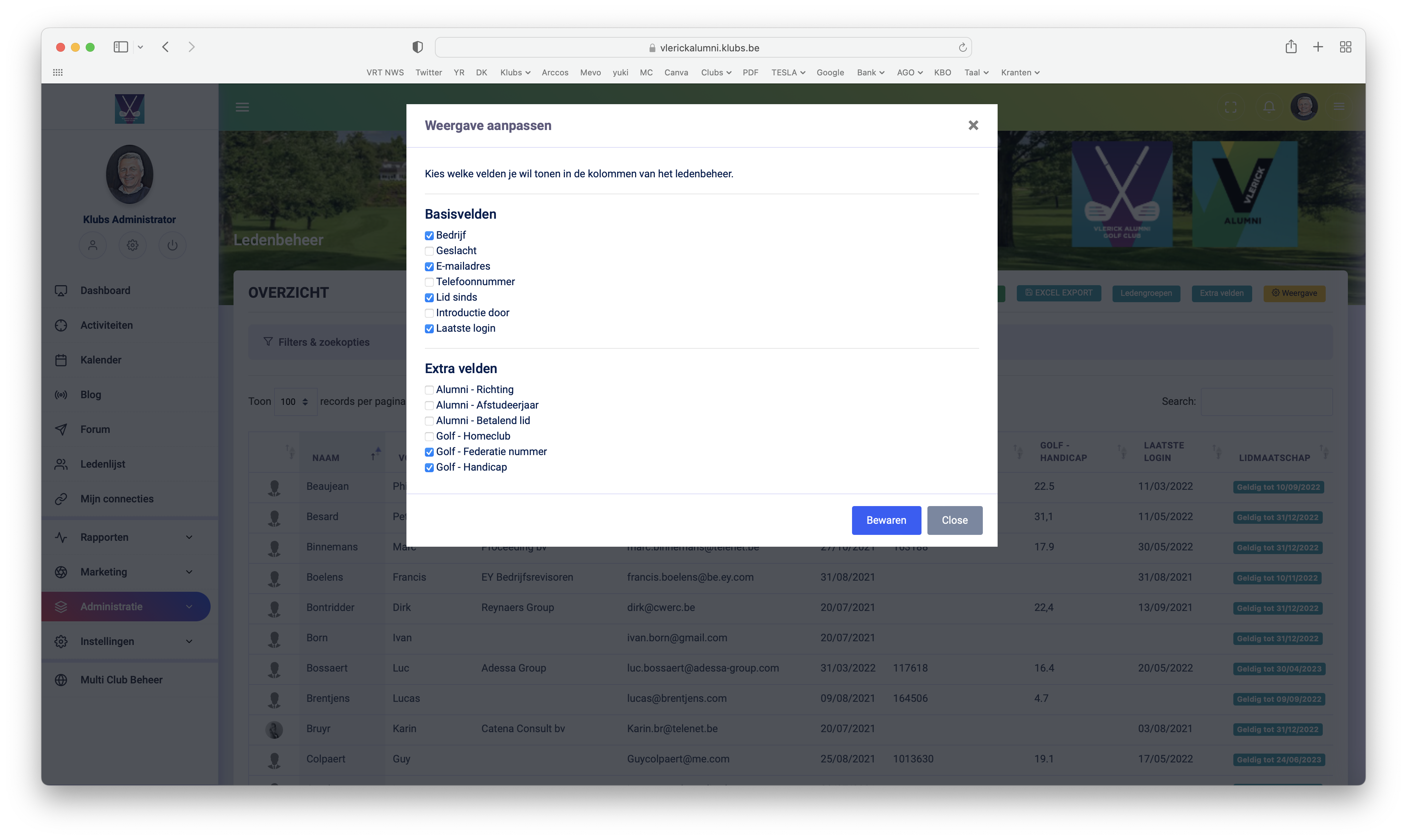
A separate screen to indicate which fields to include with:

  • Basic fields: on the admin member list
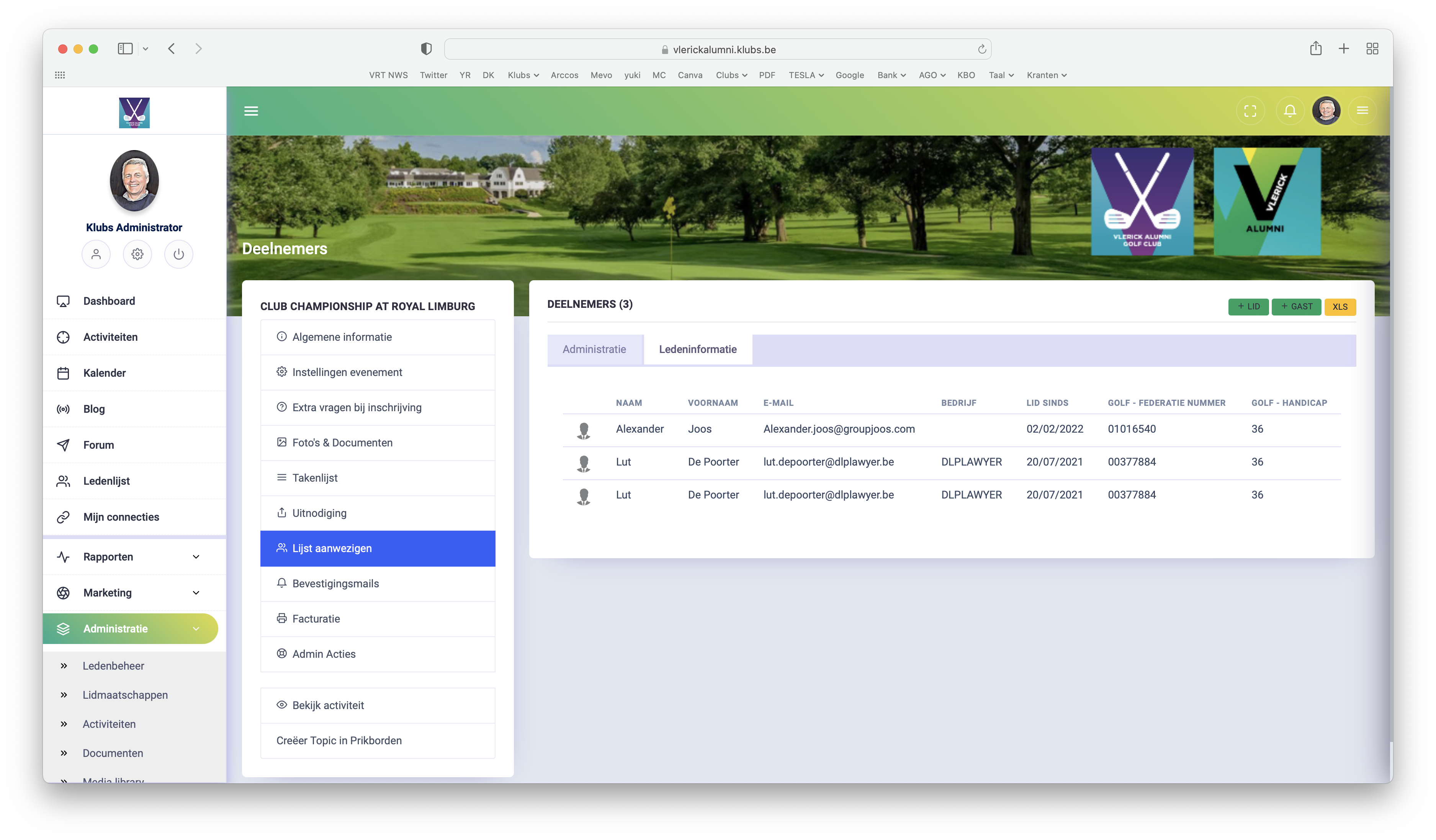
  • Activity: on the attendance list, tab - member info
Input

The additional fields are customizable by members on their profiles

And also by the admin after selecting a member in Member Management

Use

These meta fields can now be used to capture additional, club-specific, profile data.

You can find this member info at the activity on the attendance list, tab - member info.

To be further developed for: search function, downloads (Excel), selections for mailings, ...

Expansion

With the sort option, you can now also arrange the meta fields to make the query more clear.
Possibly, by extension, set up a structure of the additional fields.

Read more

Online Payments

Within Klubs now includes the option for online payments.

Now you can easily accept payments for your activities and memberships via Online Payments. It’s simple, reliable, and cost-effective. Follow the step-by-step guide below to sign up. You’ll only start paying for the Online Payments service once transactions begin (there are no subscription fees—only transaction fees).

Here are a few options within Klubs:

  • Mollie
    A modern, tech-driven payment service provider that primarily targets (small) businesses (VAT number).
    No setup fees, no subscription fees—just a flat rate per successful transaction
  • WorldLine SaferPay
    Global Corporate Payment Service Provider.
    Monthly subscription combined with transaction fees.
  • WorldLine Direct
    The latest generation from WorldLine (formerly Ingenico / Ogone)
    Also suitable for non-profit organizations.

Mollie

Setup

1. Sign up with Mollie

Sign up at the attached link: Clubs - Mollie

Collect the requested data and upload it into Mollie, such as:

  • Association: address, VAT no.
  • Beneficiary: beneficial owner as in UBO register
  • Id. of responsible
  • Payment info to make a test payment

2. Confirm your mail address

Via a confirmation mail you confirm your mail address at mollie

3. Link your association to your Klubs platform

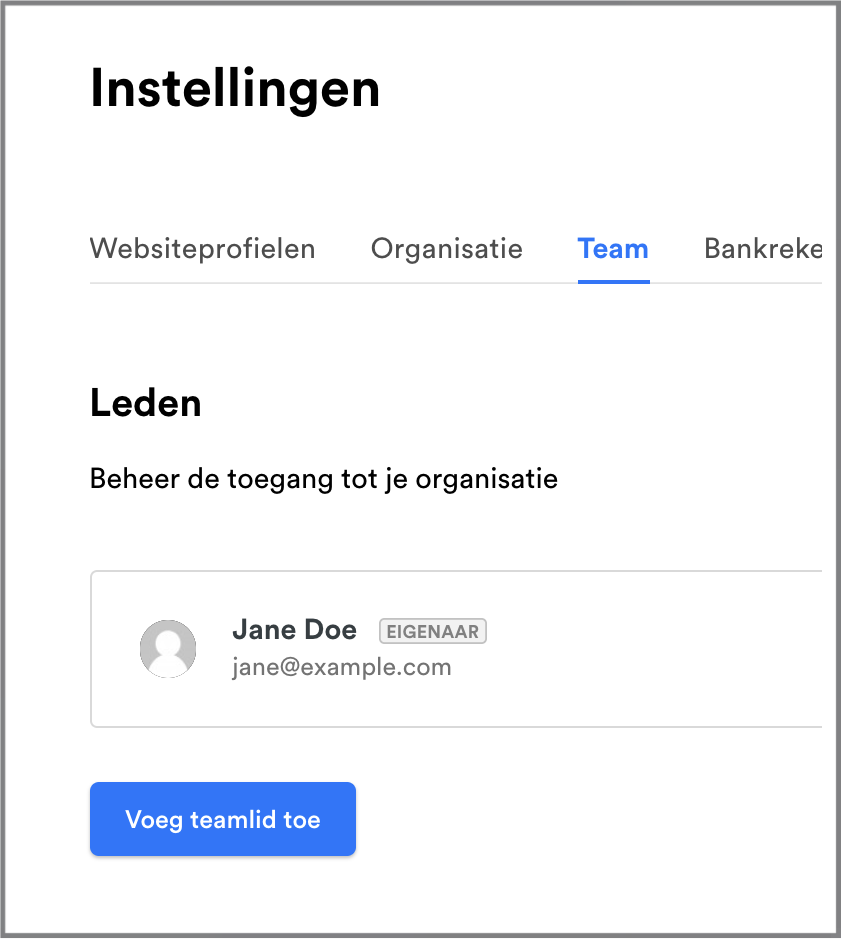
Add via: Settings / Team / add new member as Developer

  • Add the email address mollie@klubs.be.

This allows us to look up the data we need for implementation.

Activate account

At start via the button - Activate account

Add the details of your association here: address, VAT no., ...

And under VAT arrangement choose: VAT transferred

Clubs

Klubs also requires a small set-up in Settings and for your Terms and Conditions

Setup

Enter the required API information under Klubs Integrations – Online Paymens / Mollie

  •  API Key for Test / Live
  • Partner ID
  • Profile ID

Mollie compliance

To use Mollie's services, there are some terms and conditions regarding the Products and Services.
- Mollie terms and conditions

In addition, Mollie needs to know the Terms and Conditions of the Sales Environment.

Therefore, the Terms and Conditions were prepared for the Klubs platform.
- Terms and Conditions

Use

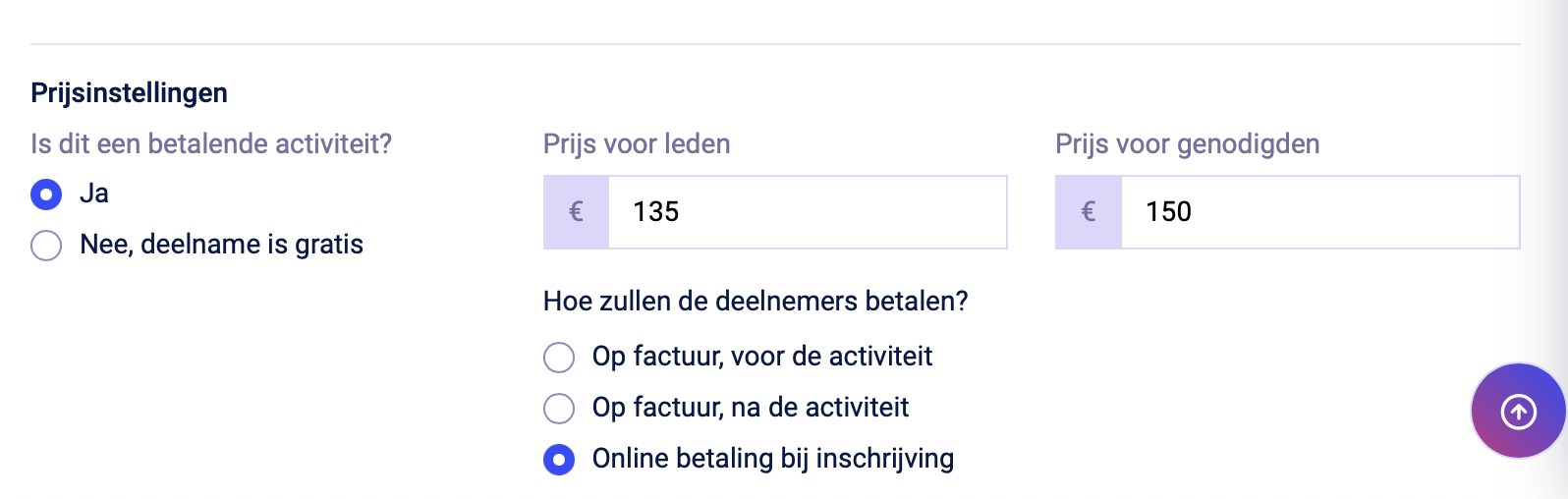
In the Activity settings still indicate - Online payment upon registration

Pay link

If mollie is set up for Klubs, in addition to online payments at activity registration, you can also use mollie for adding a payment link on your Yuki invoices.

Setup

First you need to set up a Mollie account, for your bank account.
As stated above:
- https://support.klubs.be/knowledge-base/online-payments/

Yuki

In the Yuki settings, you need to activate the Mollie link
- Settings - Integrations - Mollie

Then an indication of this payment option on the Invoicing mail in Yuki
- Settings - Sales Settings
"Please pay this invoice using the following link [PublicLink]."

Use

Below is the invoice mail as sent from Yuki, with indication of the specific payment link.

Payment for the customer is then made through the payment screens (with QR code) as above.

WorldLine Direct

Setup

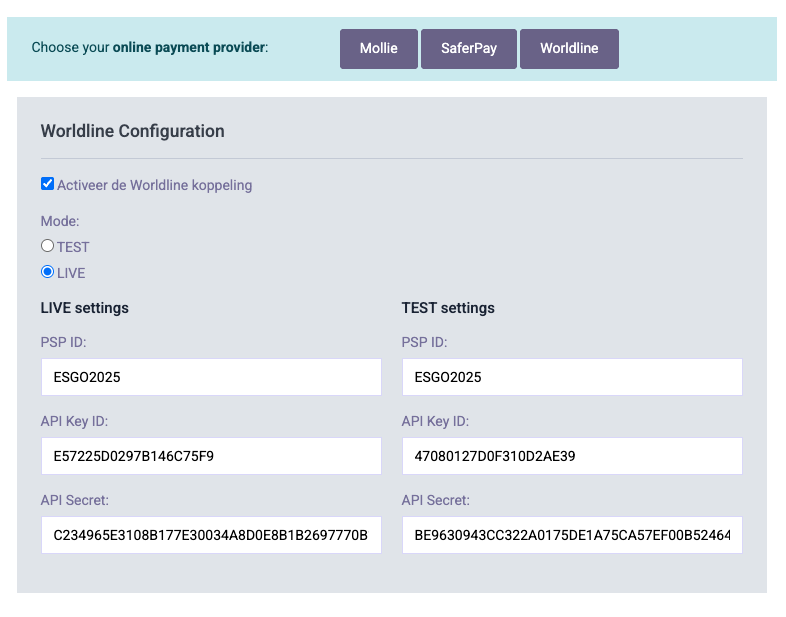
Enter the required API information under Klubs Integrations – Online Paymens / WorldLine Direct.

Here are the settings for your WordLine admin dashboard:

  • PSP ID
  •  API Key ID
  • API Secret

Use

The process in Klubs (Setup, Online Payment option) is similar to the one described above.

Read more

Activities - Date Change

If an activity can no longer take place on the scheduled date, a date change is appropriate.

Methodology

New activity

First, a new activity is created on the new date.

Copier possibly the link to this new activity

Old activity

An email will then be sent to those enrolled in the old activity.

  • Activity / Invitation
  • In the title, change "Invitation" to "Date change"
  • In the text announce the date change possibly with indication of the new date herein.
  • Possibly a link to the new activity

Send mailing (Invitation/Date Change) so registrations can change to the new date (if then available again)

Read more

Surveys and Elections

Isn't it extremely interesting for club operation to be able to conduct an evaluation with members present after an activity.

That's why we have our Surveys module. Useful for evaluations, but also elections, etc.

Surveys

Therefore, a comprehensive evaluation functionality:

  • Various survey forms (for different target groups)
  • Members or public surveys
  • Limitation (per member) in terms of number of responses
  • Extended question (Text, Number, Yes / No, Choice, Range)
  • Results: Graphic Representation and Download

Survey Setup

Survey setup starts with adding a new survey.

A series of settings per survey:

  • Start and end (date and time) – especially for the Elections
  • Public or members only, possibly restricted to a member group
  • Response management
  • Links for mailing or publication

Questions

A number of questions can be asked for each survey.

And for the type of questions, a wide range of possibilities:

  • Text
  • Number
  • Yes / No
  • Long Text
  • Single Choice
  • Multiple Choice
  • Range 1-10, with a "not applicable" option

Use

Members (or all respondents) can be invited to participate in the evaluation via a separate email (Mail Campaign).

Reporting

Reporting the result via a graphical representation or a download of all answers.

Elections

The Survey module can be specifically configured to facilitate elections. Thanks to its built-in validations, the module guarantees the integrity of the voting process:

  • Voting period: Start and end (date and time)
  • Voting rights (Authorization): Access can be strictly limited to members or specific member groups (board, active members).
  • Voting rights validation: option for the "one member, one vote" principle
  • Candidate list: Use of single-choice questions for single seats, possibility of abstention option
  • Selection range: Setting a lower and upper limit for the number of votes to be cast
  • Anonymity: Option for (anonymized response).

Read more

Financial Procedures

After the correct financial processing of your memberships (creation, renewal) and activities (settlement of costs), they still need to be followed up for payment, reminders, possibly (in case of non-payment) membership status Expired.

The procedure in terms of follow-up depends on the administrative method used

  • Online Payments
  • Manual follow-up


Online Payments

With online payments, there is mainly an easier tracking of the payments, and thus the possible reminders.
The possible entries remain identical, depending on the accounting system chosen.

Memberships

Follow up on payments:

A payment invitation will be sent by mail at the time of membership invitation and renewal. Upon approval, the member can make the payment, through Mollie.

  • Manual Follow-up
    Maintain in Clubs via Indication "invoiced" and "paid" on membership
    If not paid, remove member by changing Member status
  • Accounting
    Upon non-payment of membership invoice, any credit note, and removal of member by changing Member status to expired.

Activities

During registration, the online payment procedure is carried out and the registration is final only after effective payment.

  • Manual Follow-up
    Automatic indication "paid" on attendance list at the activity
  • Accounting
    Identical follow-up as below, but with invoice already paid

Manual Succession

Memberships

Follow up on payments:

  • The renewal email can be sent in cc to Admin, follow up via this email
  • Track in Clubs via Indication "billed" and "paid" on membership

Activities

Follow up on payments:

  • Export the invoicing list at Activities / Invoicing
  • Payment control via bank statements and indication "paid" on attendance list

Reporting Financials

The open payments for all activities and memberships conveniently together:
- Reporting / Financial


Read more

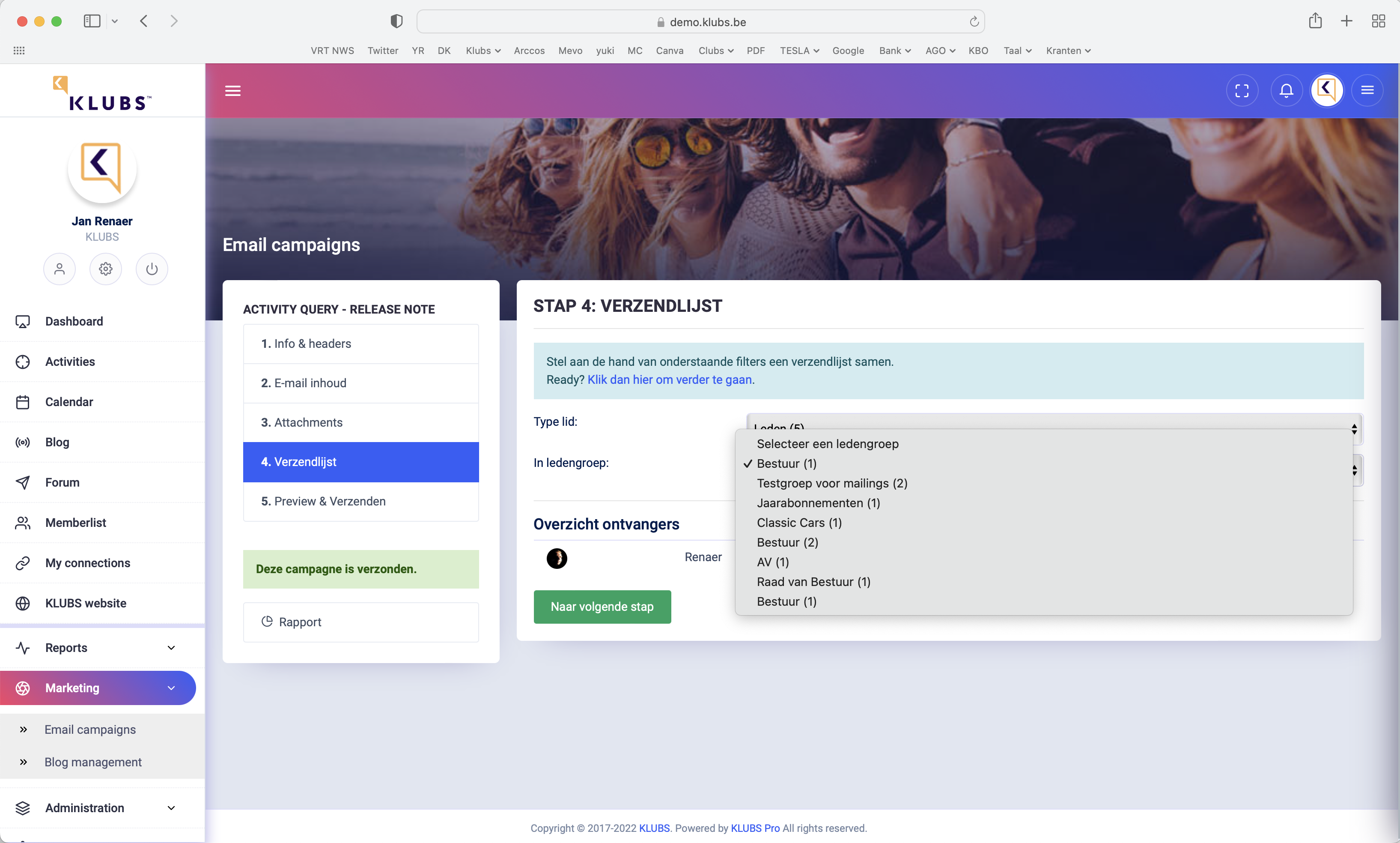
Member groups

Member groups

Now create member groups to manage category of members separately, such as: Board of Directors, Ladies, or specific club interest areas.
Use these member groups among others for separate invitations.


Member groups

Setup

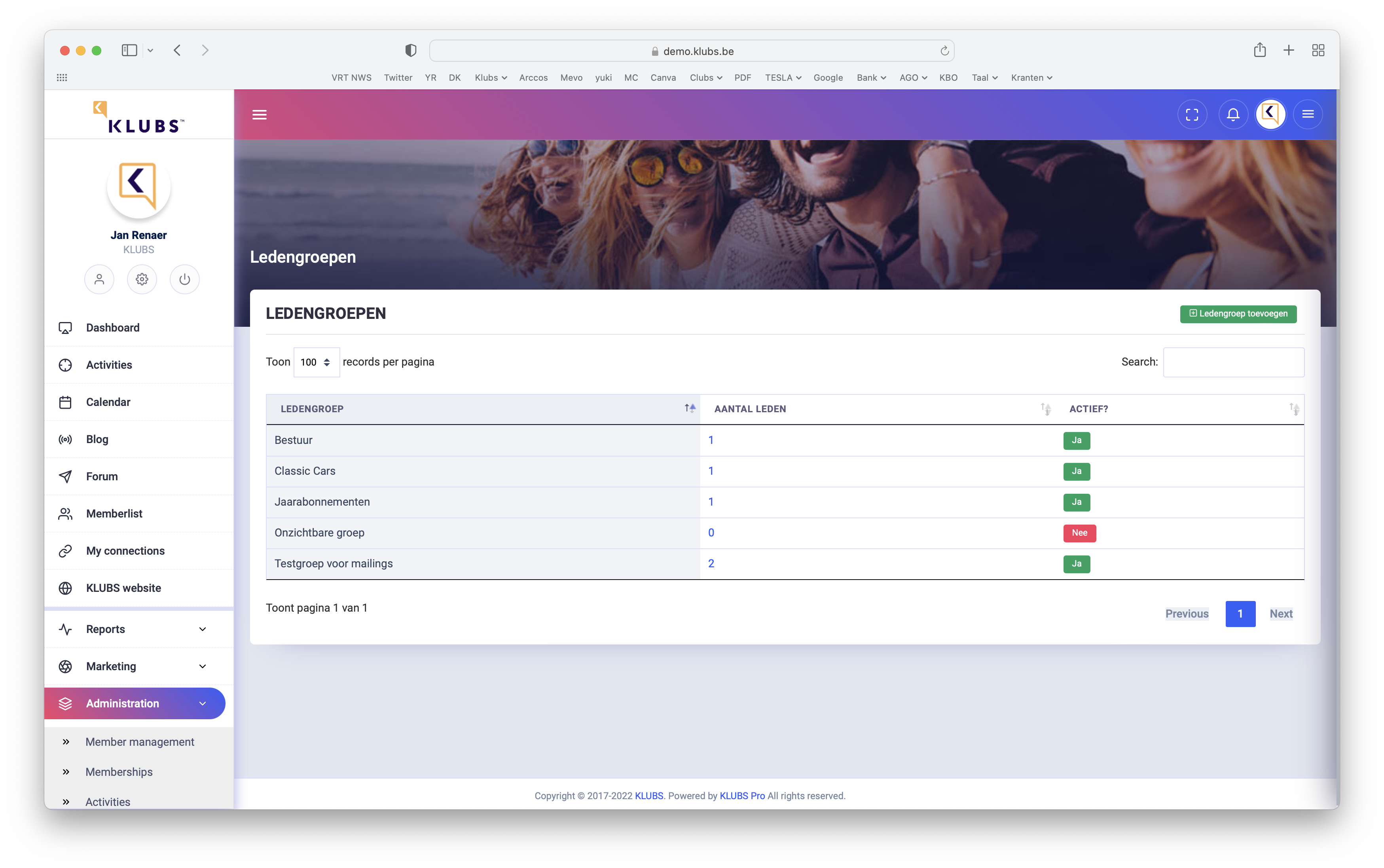
Creating member groups is done within Admin in Member Management.

Here you can also see (click on number) who belongs to this group

Input

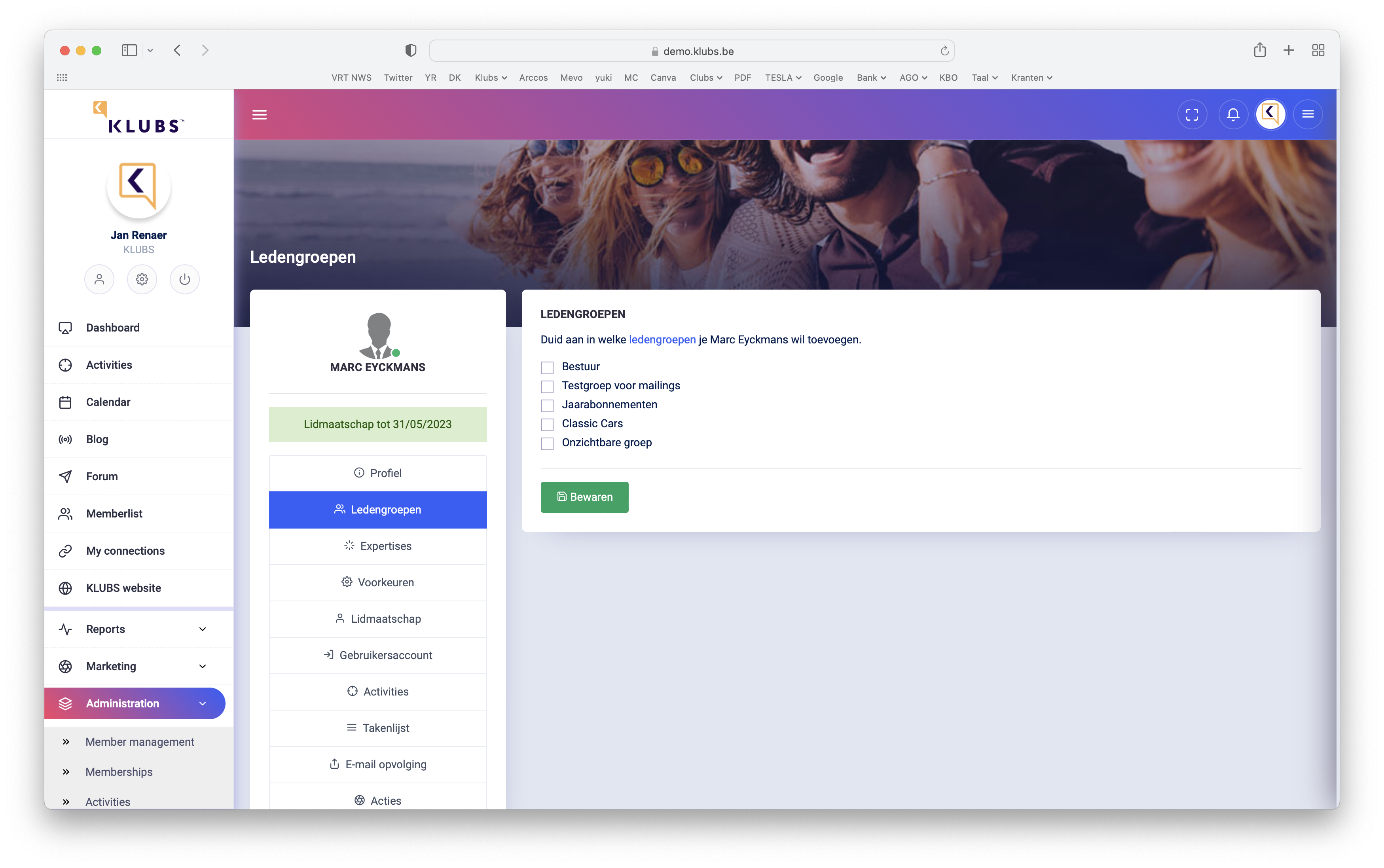
Adding members to a group is done by Admin on the member's profile (Member Management, member selection).

And add member to the specific groups

Use

Member groups review

Ability to search within member groups, within Admin at Member Management.

Above: Filters & search options

Send invitations to specific audiences

In the activities, when creating the Invitation, select the Send invitation / reminder tab

At the bottom of resending, possibility to select a Target Group, possibility to send to only members from a certain member group.


Specific Activities

Certain specific activities, such as board meetings, can also be managed with Klubs.

Setup

Create a regular activity for this with all the info: location, timing, agenda, ...
You do not publish this activity (for all members) but it is available to the specific target group via a separate invitation.

Further procedure:

  • In Settings set the indicator to: Published - No
  • Also possibly copy the url at the top of your browser - ... klubs.be/activity_detail?id=3

Use

You can now use this activity, only specific is the invitation

  • Activity invitation - Target group selection
    - Send only to members from a specific member group
  • Mail invitation or via Mail campaign
    - use copied url (...klubs.be/activity_detail?id=3)

Attachments to board meetings can be sent optimally via the E-Mail campaigns - Attachments or attached to the activity via Activity Media.

Follow up

Follow up from the admin, like other activities: add attendees, members and guests, confirmations.

And also attendees can follow up on this, this activity is in their profile - My Activities.

Read more